An Azure Function app with an EventGrid-trigger function that forwards events
to an Azure SignalR service, and an accompanying dotnet global tool to
connect to it and receive the streaming events in real-time.
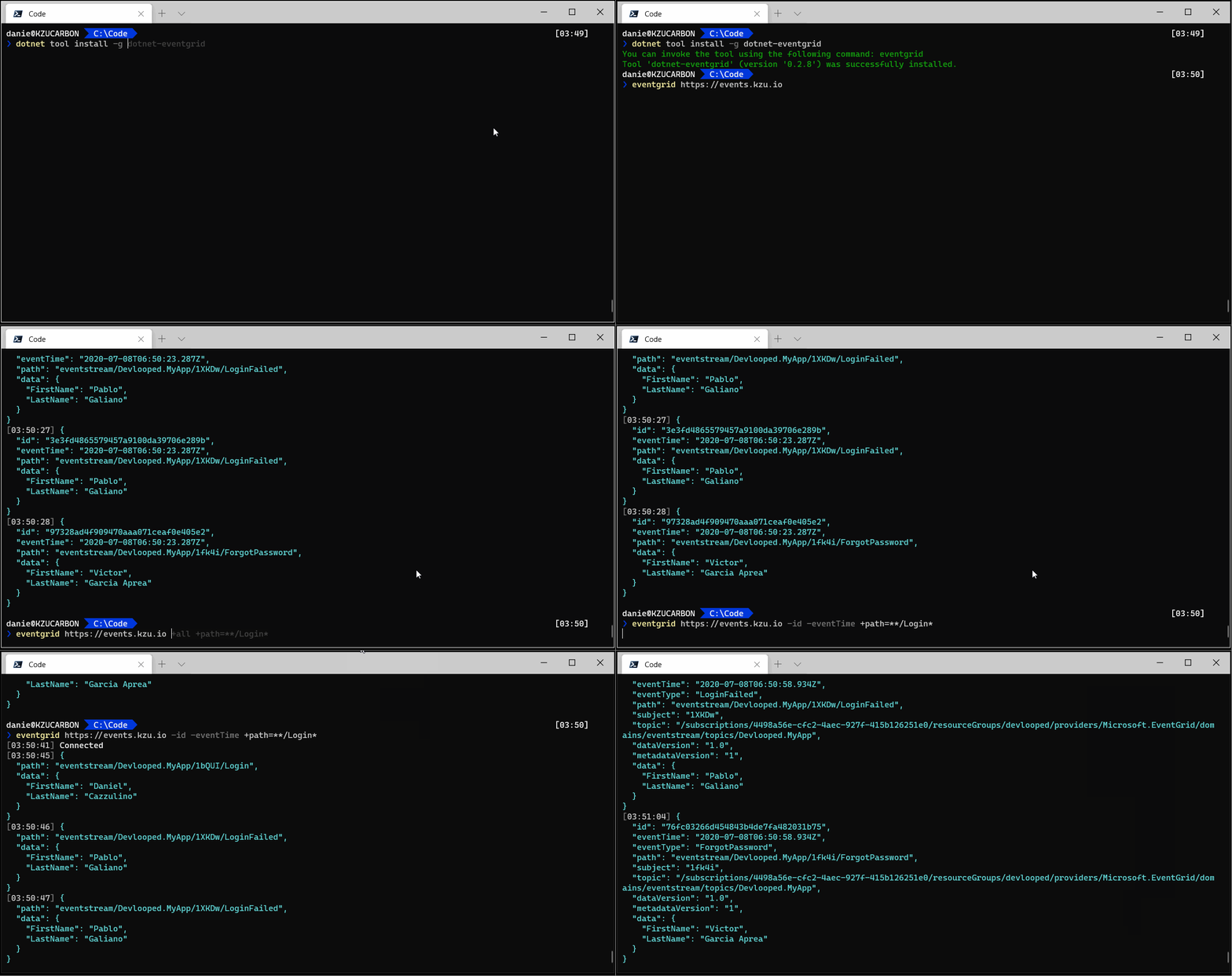
Now you can install the dotnet tool that connects to your cloud infrastructure:
dotnet tool install -g dotnet-eventgrid
Update:
dotnet tool update -g dotnet-eventgrid
Usage
Usage: eventgrid [url] -[property]* +[property[=minimatch]]*
      +all                    Render all properties
      -property               Exclude a property
      +property[=minimatch]   Include a property, optionally filtering
                              with the given the minimatch expression.

Examples:
- Include all event properties, for topic ending in 'System'
      eventgrid https://mygrid.com +all +topic=**/System

- Exclude data property and filter for specific event types
      eventgrid https://mygrid.com -data +eventType=Login

- Filter using synthetized path property '{domain}/{topic}/{subject}/{eventType}'
      eventgrid https://mygrid.com +path=MyApp/**/Login

- Filter using synthetized path property for a specific event and user (subject)
      eventgrid https://mygrid.com +path=MyApp/*/1bQUI/Login
eventgrid also supports .netconfig for configuring
arguments:
[eventgrid]
    url = https://events.mygrid.com

    # filters that events must pass to be rendered
    filter = path=MyApp/**/Login
    filter = eventType=*System*

    # properties to include in the event rendering
    include = EventType
    include = Subject

    # properties to exclude from event rendering
    exclude = data
The url is the address of your deployed function app, which can optionally
have an ?key=[access-key] query string with the same value specified in the
Function App configuration settings with the name AccessKey. If present, it
will be used as a shared secret to authorize the SignalR stream connection.
Keep in mind that the built-in EventGrid format for topic is rather unwieldy:
/subscriptions/{subscriptionId}/resourceGroups/{resourceGroupName}/providers/Microsoft.EventGrid/domains/{domainName}/topics/{topicName}.
For this reason, we also provide a synthetized path property with the much
simpler format {domain}/{topic}/{subject}/{eventType}, which makes filtering
with the minimatch format much more
convenient.
If you already know how to deploy an Azure SignalR service, you can safely
skip the following section.
Deploy
The dotnet global tool eventgrid connects to a SignalR service that broadcasts events with a
specific format (basically, just JSON-serialized EventGridEvent
objects). In order to receive those, we need to connect an EventGrid subscription (thorugh an
Azure function) to SignalR. Since the resources, cost and privacy issues involved are non-trivial,
we don't provide a ready-made service you can just connect your EventGrid events to.
Instructions to deploy the cloud pieces on your own Azure subscription:
The first step to getting your own event grid events routed to the tool is to
set up a Azure SignalR service if
you don't have one already. There is a free tier
that allows 20 simulaneous connections and up to 20k messages per day.
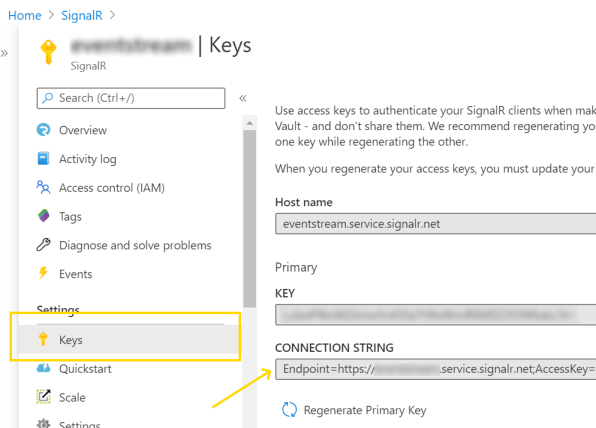
Once created, open the Settings > Keys pane and copy the Connection String.
Next comes the Function App. Create
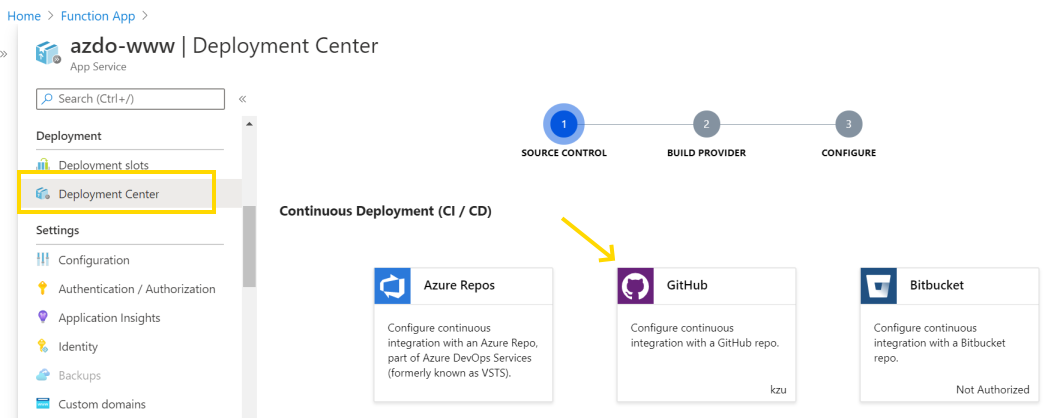
an empty one, using .NET Core 3.1. The simplest way to deploy the code to it is to select the
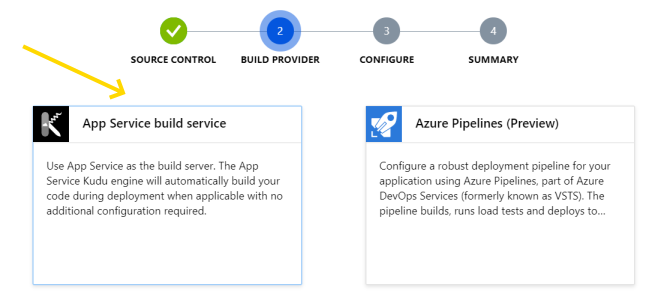
Deployment Center pane, select GitHub for source control (point it to your fork of this repo)
and App Service build service for the build provider.
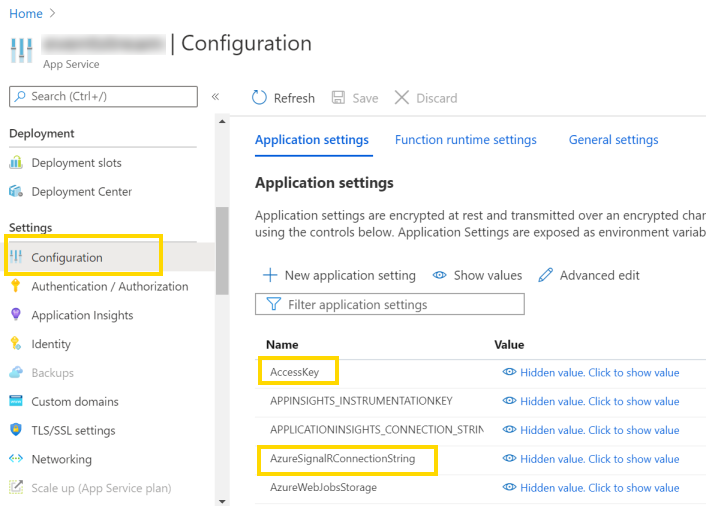
Now we need to configure a couple application settings in the function app:
AzureSignalRConnectionString: set it to the value copied in step 2.
Optionally, create an AccessKey value with an arbitrary string to use as a shared
secret to authorize connections from the client. You will need to append that key to
the url passed to the eventgrid tool, like eventgrid https://myfunc.azurewebsites.net/?key=...
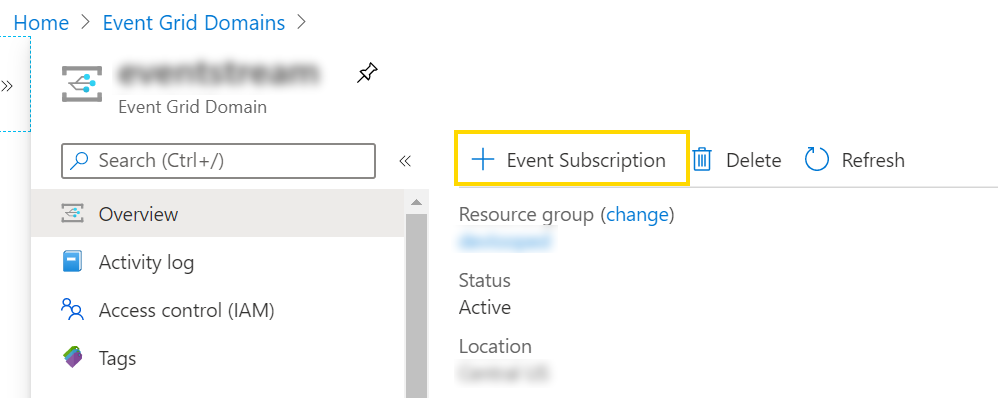
The final step is to start sending events to the function app just created.
Go to all the relevant EventGrid services you have (or create a new one)
and set up the subscriptions to push as much or as little as you need to visualize
on the tool. Keep in mind that the tool can also do filtering on the client side,
so that you don't need to constantly update the subscriptions. During development,
it can be convenient to just create a single global subscription with no filters
and just filter on the client. Beware of the SignalR service limits for the tier
you have selected, though.
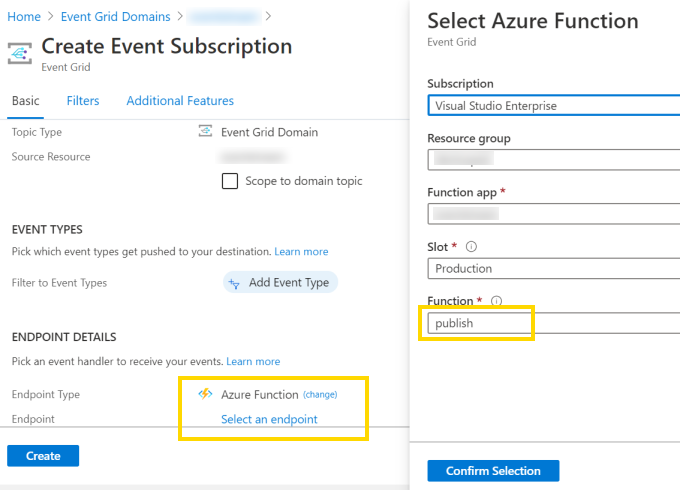
You just need to create a new Event Subscription and select the Azure Function
endpoint type, and point it to the deployed function app from step 3.
The function will be named publish once you select the right subscription,
resource group and function app
Testing events
Pushing test events to EventGrid is quite simple. Provided you have a package
reference to Microsoft.Azure.EventGrid, you can use the following snippet
of C# (for example in the most excelent LINQPad tool,
or in a simple top-level C# 9 program) to push some events:
var domain = "YOUR_EVENT_GRID_DOMAIN_ENDPOINT_HOSTNAME";                // From the Overview pane
var credentials = new TopicCredentials("YOUR_EVENT_GRID_ACCESS_KEY");   // From Access keys pane

var events = new List<EventGridEvent>
{
    new EventGridEvent(
        id: Guid.NewGuid().ToString("n"),
        subject: "1bQUI",
        data: JsonConvert.SerializeObject(new { FirstName = "Daniel", LastName = "Cazzulino" }),
        eventType: "Login",
        eventTime: DateTime.UtcNow,
        dataVersion: "1.0",
        topic: "Devlooped.MyApp"),
    new EventGridEvent(
        id: Guid.NewGuid().ToString("n"),
        subject: "1XKDw",
        data: JsonConvert.SerializeObject(new { FirstName = "Pablo", LastName = "Galiano" }),
        eventType: "LoginFailed",
        eventTime: DateTime.UtcNow,
        dataVersion: "1.0",
        topic: "Devlooped.MyApp"),
    // ...
};

using (var client = new EventGridClient(credentials))
{
    foreach (var e in events)
    {
        await client.PublishEventsAsync(domain, new List<EventGridEvent> { e });
        Thread.Sleep(1000);
    }
}
The above was pretty much what we used to create the animated gif at the top.
 dotnet-eventgrid