Contentful Update Tool and Extractor. Bulk upload and download from excel/csv/tsv/yaml/json/sql. Bulk content generator via AI using prompts in your Contentful space.
Get Started
$ dotnet add package cuteReadme





Contentful Update Tool and Extractor. Bulk upload and download from excel/csv/tsv/yaml/json/sql. Bulk content generator via AI using prompts in your Contentful space.
$ dotnet add package cute

A Contentful Update Tool & Extractor
cute is a cross-platform CLI tool that brings several advanced features and capabilities to working with your content hosted on Contentful.
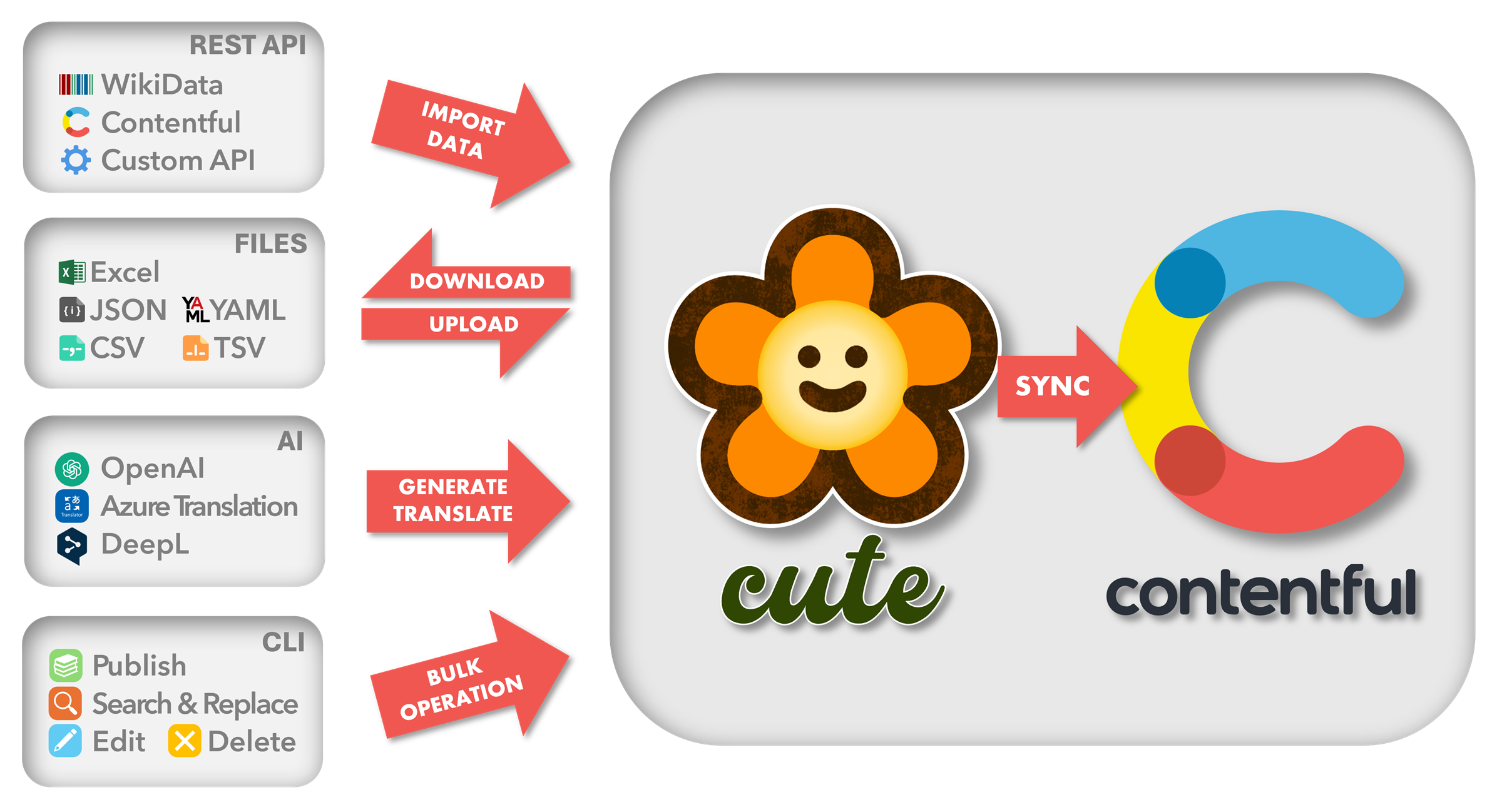
typegen command option which exports TypeScript (TS) interface declarations. This feature is especially useful to keep your JavaScript or .NET projects in sync with your content types.💡 Contentful is a content infrastructure platform that lets you create, manage and distribute content to any platform. Contentful offers a simple UI to declare and manage a content model, independent from the presentation layer.
For windows (cmd or powershell):
winget install Microsoft.DotNet.SDK.8
Or, on linux and iOS
sudo apt-get update && sudo apt-get install -y dotnet-sdk-8.0
On windows you may have to close and re-open the command line prompt (or Windows Terminal).
Install the cute cli by typing.
dotnet tool install -g cute
Simply type
cute
This will display the cute help. You are ready to go! 🚀
cute --help
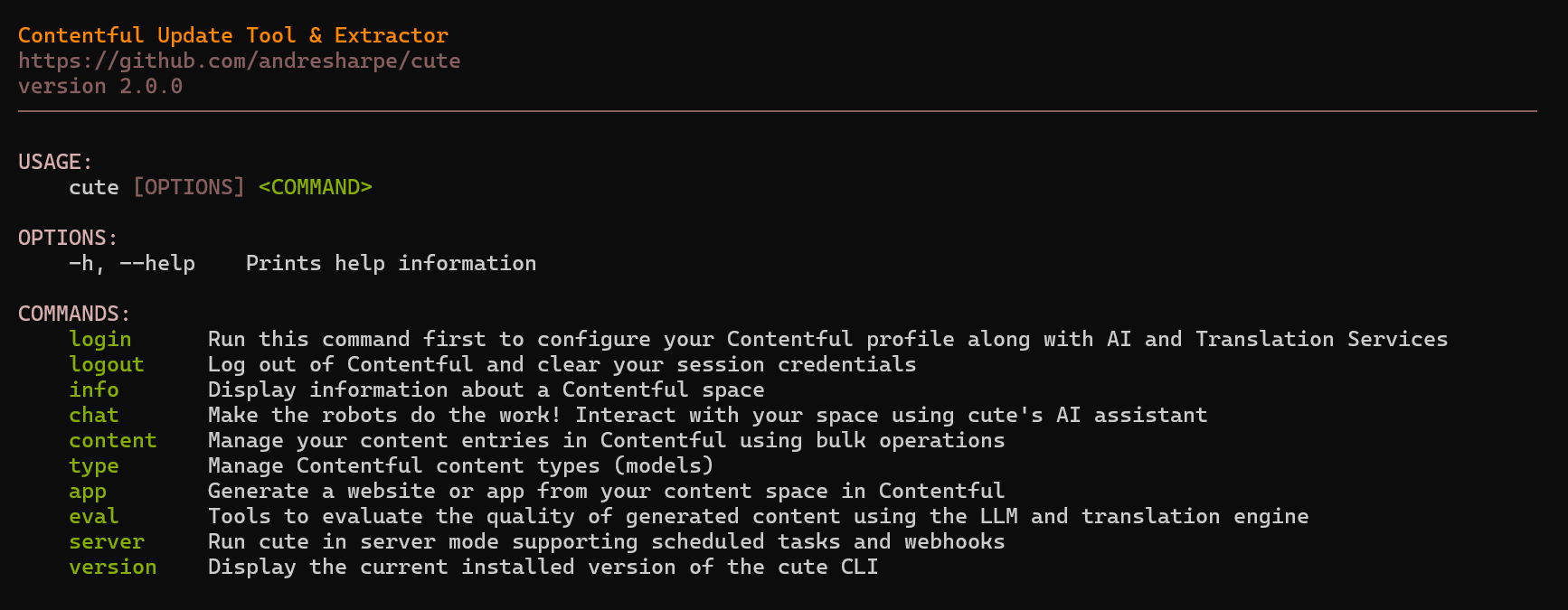
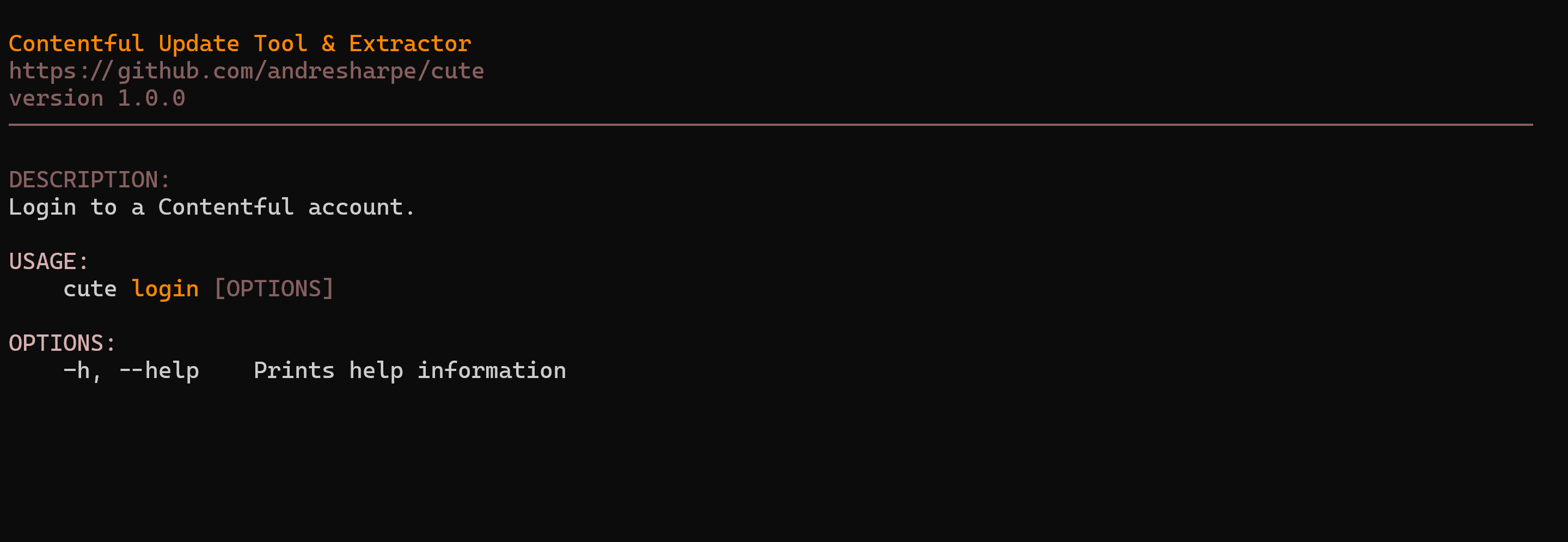
Start your cute session by running the login command. This will configure your Contentful session profile using the selected space, environment and API keys. You can also enter your AI and translation services keys here.
cute login
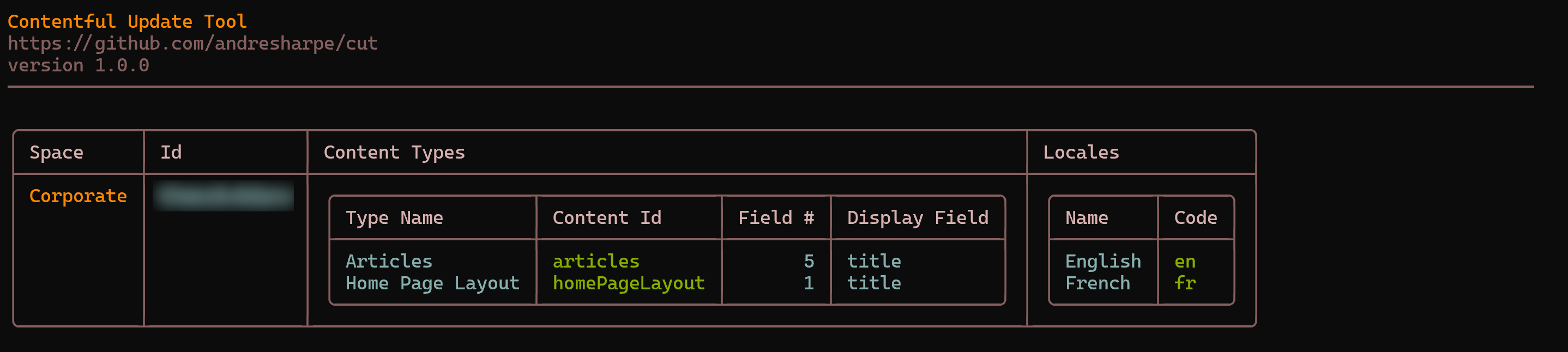
Display a comprehensive overview of your Contentful session information including space, environment, content types and locales. Info related to CLI display settings is also shown.
cute info
The cute content and its respective command options represents the real workhorse of the cute tool. It essentially presents the user with a suite of bulk operation options to interact with their content in Contentful.
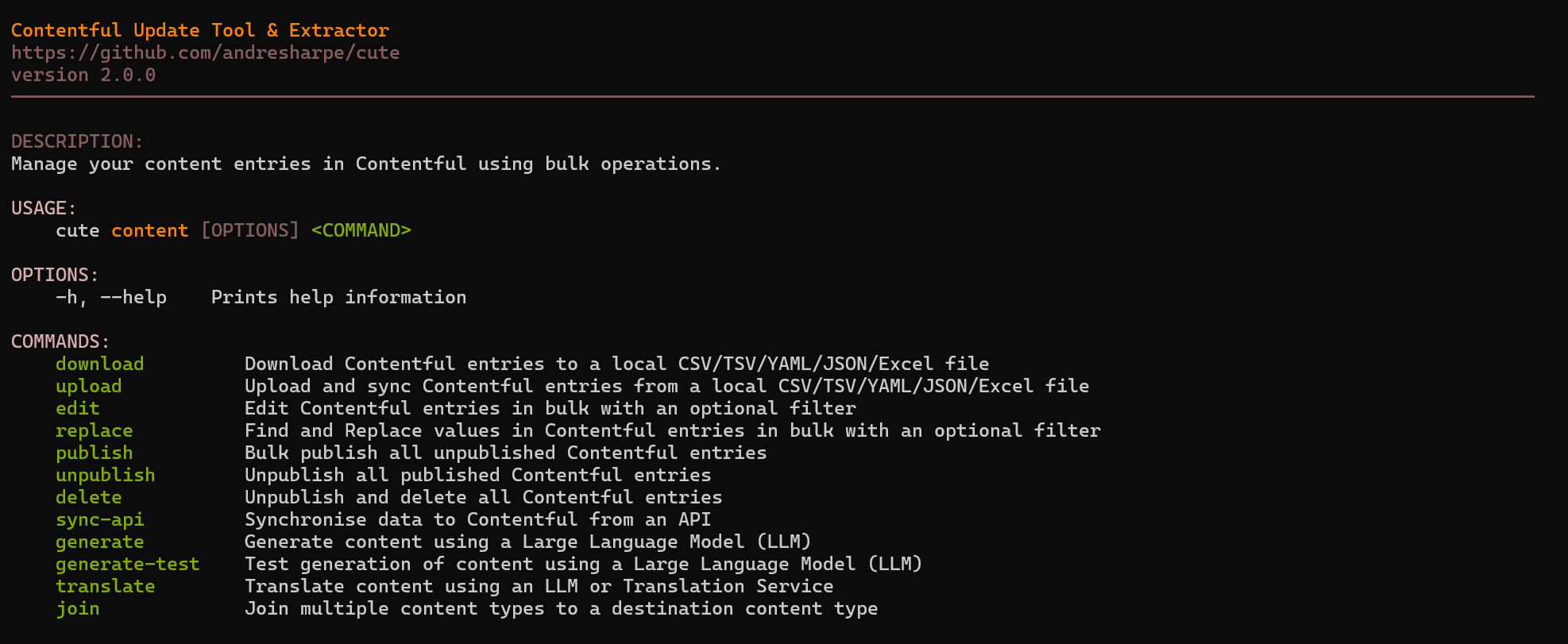
Content can easily be downloaded from your Contentful space in one of several popular formats including Excel, comma separated (CSV), tab separated (TSV), JSON and YAML. If no format is specified, the downloaded file with default to the Excel format.
cute content download --content-type <contentType>
cute content download --content-type <contentType> --format [excel|csv|tsv|json|yaml]
Issuing any content download command will yield a result similar to the display below.

Typing cute download --help will list all currently available options and usage.
USAGE:
    cute content download [OPTIONS]

OPTIONS:
    -h, --help                  Prints help information
    -c, --content-type-id <ID>  The Contentful content type id
    -l, --locale <CODE>         The locale code (eg. 'en') to apply the command to. Default is all
    -f, --format <FORMAT>       The output format for the download operation (Excel/CSV/TSV/JSON/YAML)
    -p, --path <PATH>           The output path and filename for the download operation
You can upload content from a local file to your Contentful space. The local file can be a previously downloaded and updated Excel, CSV, TSV, JSON or YAML file.
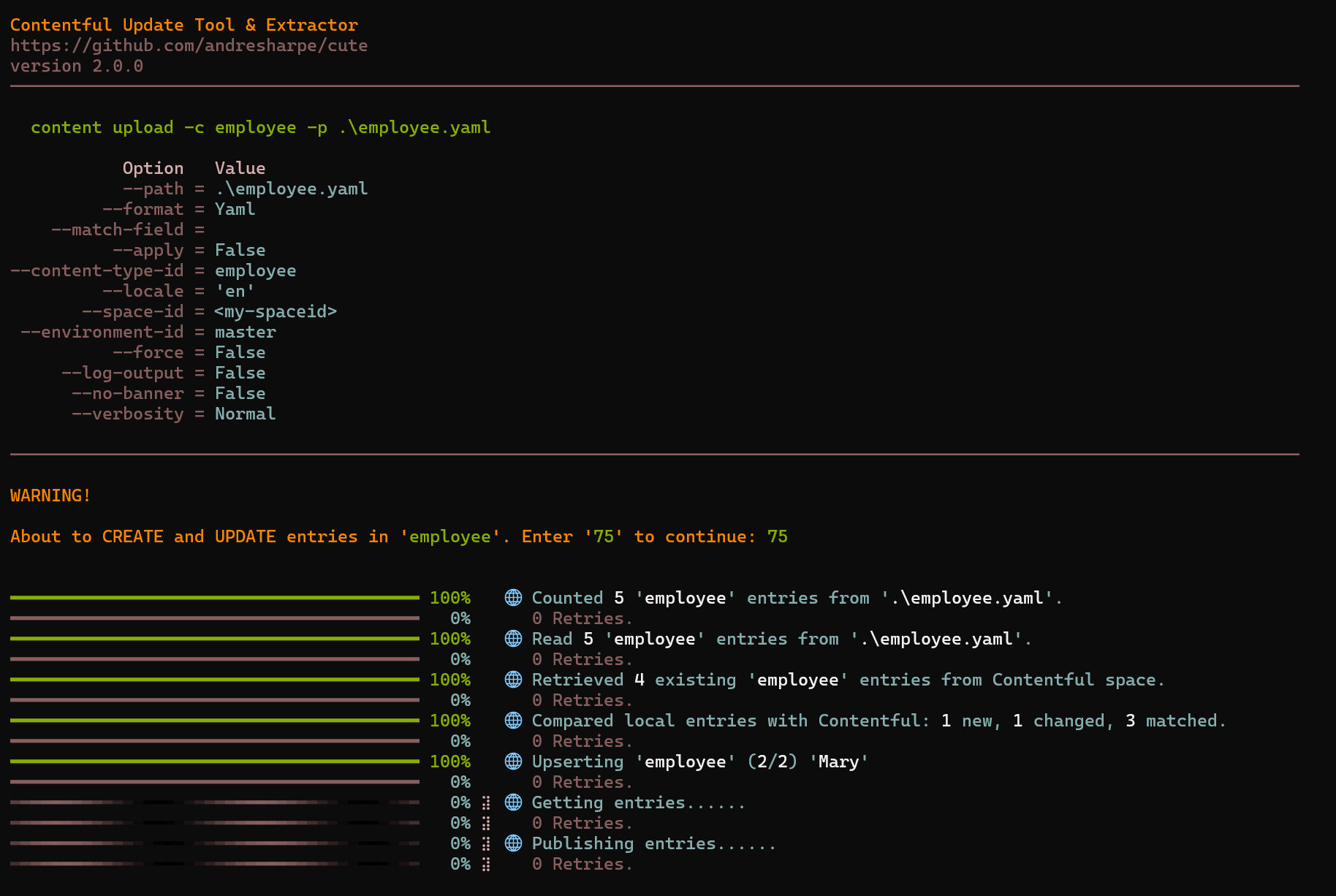
cute will prompt you to confirm a 2-digit code to prevent you from updating your content accidentally.
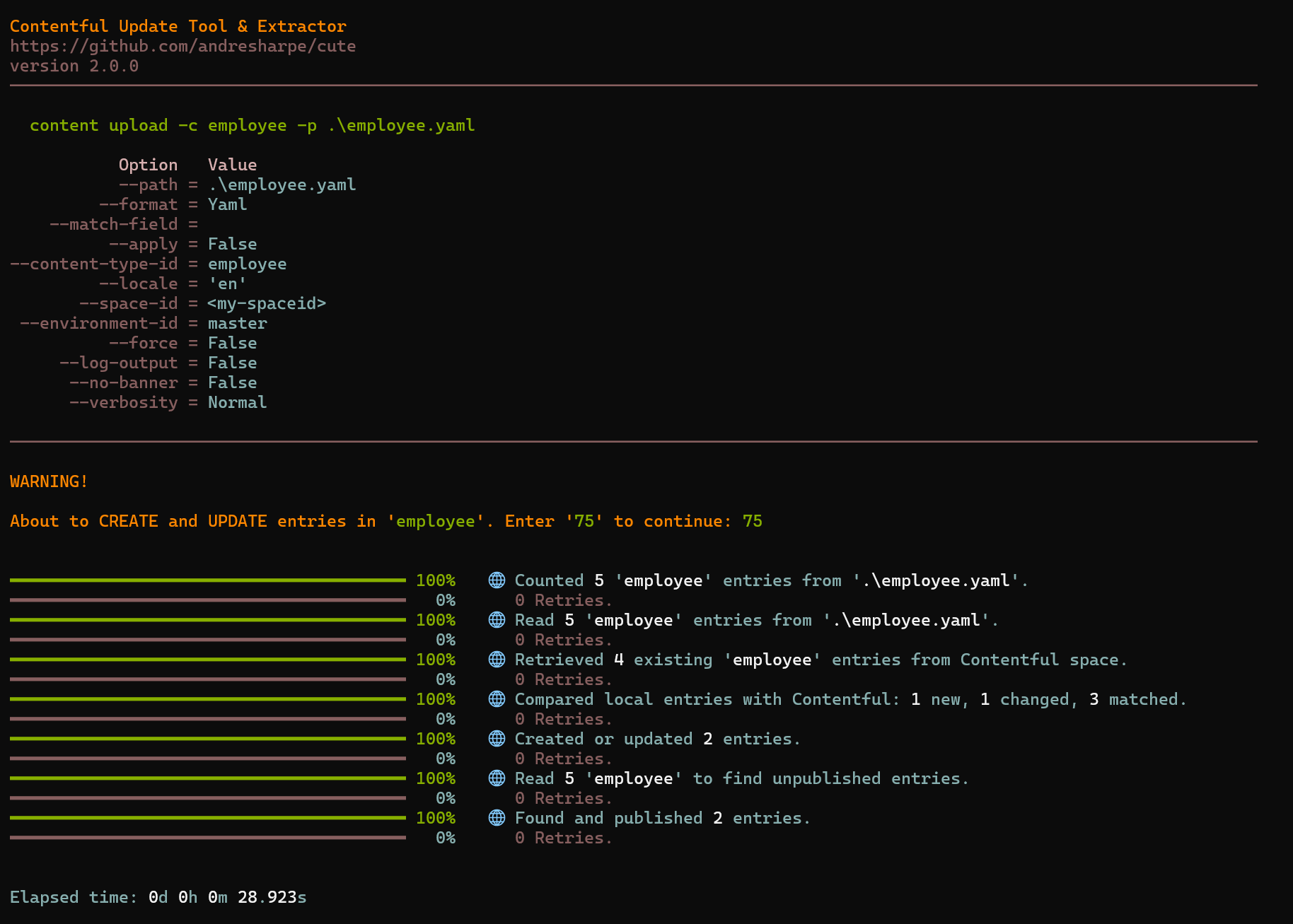
Typing cute content upload --help will show the full usage and options.
USAGE:
    cute content upload [OPTIONS]

OPTIONS:
    -h, --help                  Prints help information
    -c, --content-type-id <ID>  The Contentful content type id
    -l, --locale <CODE>         The locale code (eg. 'en') to apply the command to. Default is all
    -p, --path <PATH>           The local path to the file containing the data to sync
    -f, --format <FORMAT>       The format of the file specified in '--path' (Excel/CSV/TSV/JSON/YAML)
    -m, --match-field <NAME>    The optional name of the field to match in addition to the entry id
    -a, --apply                 Apply and publish all the calculated changes. The default behaviour is to only list the detected changes
You can synchronize your Contentful content with external APIs by using the cute content sync-api command option.
USAGE:
    cute content sync-api [OPTIONS]

OPTIONS:
    -h, --help                  Prints help information
    -s, --space-id <ID>         The Contentful space identifier.
    -e, --environment-id <ID>   The Contentful environment identifier.
        --force                 Specifies whether warning prompts should be bypassed
    -k, --key                   The key of the cuteContentSyncApi entry
    -a, --apply                 Apply and publish all the required edits
    -u, --use-filecache         Whether or not to cache responses to a local file cache for subsequent calls
Prior to running the command, you should configure API settings and field mappings in your Contentful space under the cuteContentSyncApi content type.
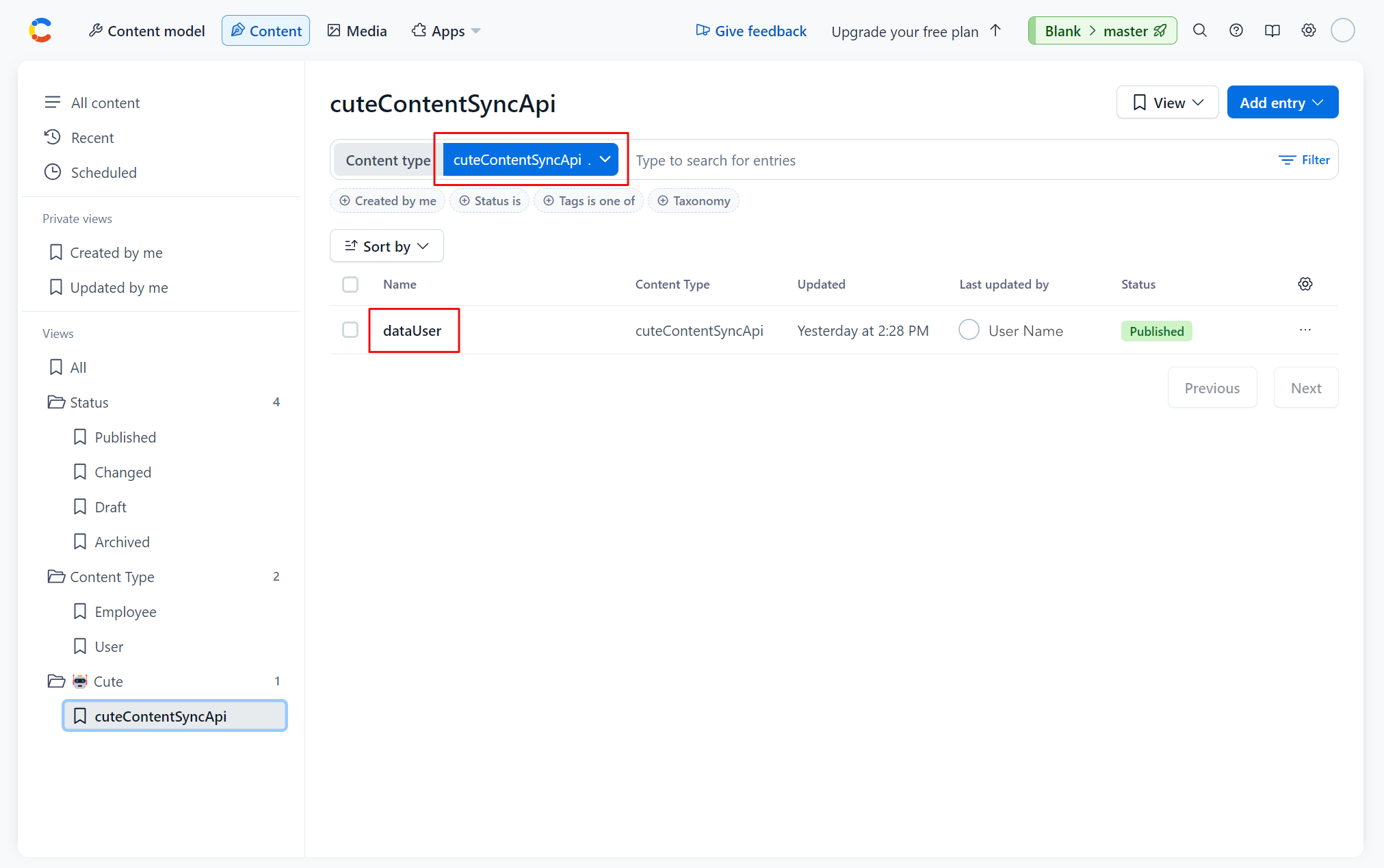
Create a new entry for the relevant content as per the graphic below:
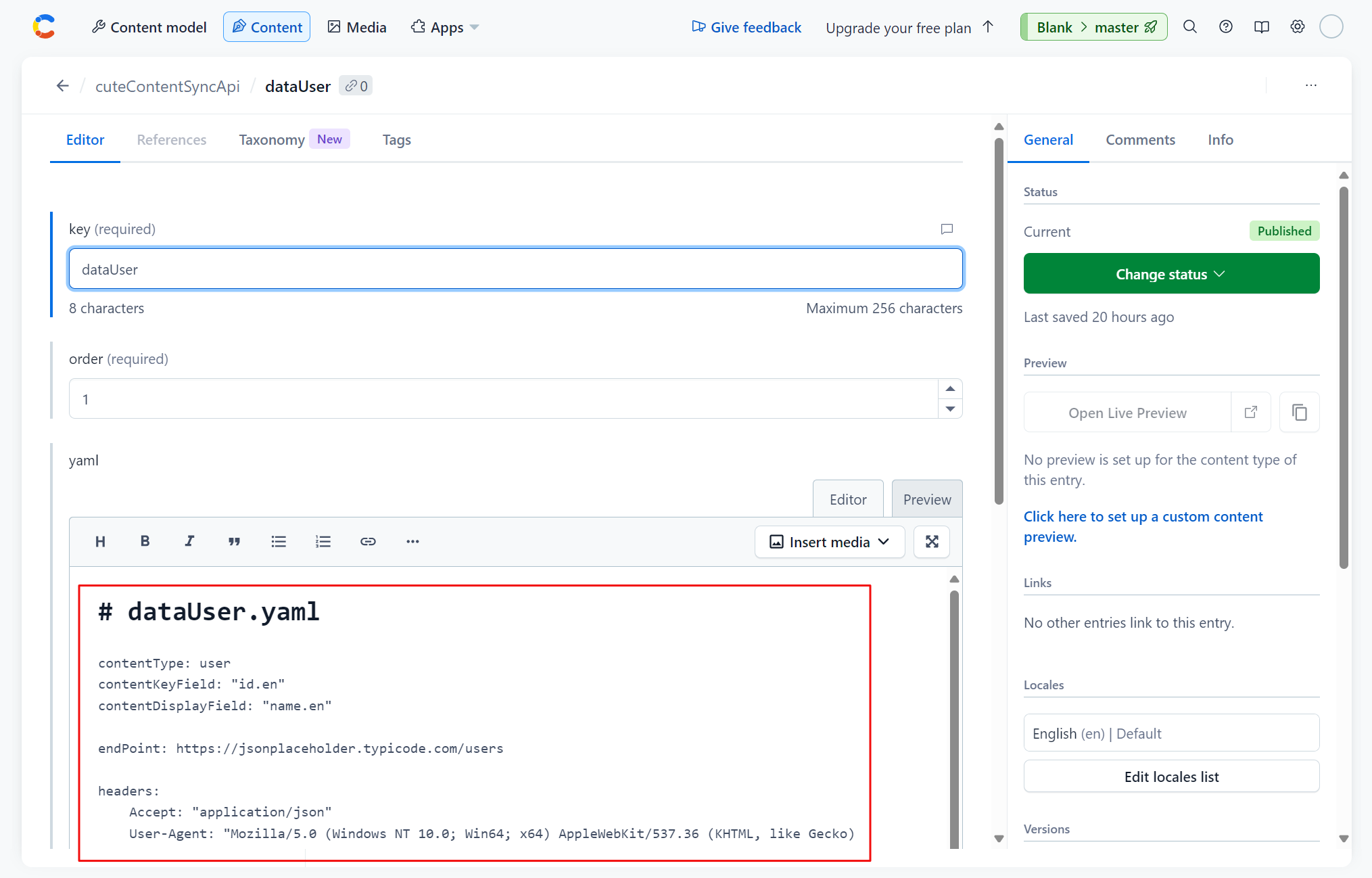
We're going to sync to the users endpoint over at {JSON} Placeholder to populate our Users content. A small sample is shown below:
[
  {
    "id": 1,
    "name": "Leanne Graham",
    "username": "Bret",
    "email": "Sincere@april.biz",
    "address": {
      "street": "Kulas Light",
      "suite": "Apt. 556",
      "city": "Gwenborough",
      "zipcode": "92998-3874",
      "geo": {
        "lat": "-37.3159",
        "lng": "81.1496"
      }
    },
    "phone": "1-770-736-8031 x56442",
    "website": "hildegard.org",
    "company": {
      "name": "Romaguera-Crona",
      "catchPhrase": "Multi-layered client-server neural-net",
      "bs": "harness real-time e-markets"
    }
  },
  {
    "id": 2,
    "name": "Ervin Howell",
    "username": "Antonette",
    "email": "Shanna@melissa.tv",
    "address": {
      "street": "Victor Plains",
      "suite": "Suite 879",
      "city": "Wisokyburgh",
      "zipcode": "90566-7771",
      "geo": {
        "lat": "-43.9509",
        "lng": "-34.4618"
      }
    },
    "phone": "010-692-6593 x09125",
    "website": "anastasia.net",
    "company": {
      "name": "Deckow-Crist",
      "catchPhrase": "Proactive didactic contingency",
      "bs": "synergize scalable supply-chains"
    }
  }
]
Our Users content entry has a few matching fields and some which we'll map.

Basic identifiers, API headers and endpoints as well as field mappings can be configured as per the code snippet below.
# dataUser.yaml

contentType: user
contentKeyField: "id.en"
contentDisplayField: "name.en"

endPoint: https://jsonplaceholder.typicode.com/users

headers:
    Accept: "application/json"
    User-Agent: "Mozilla/5.0 (Windows NT 10.0; Win64; x64) AppleWebKit/537.36 (KHTML, like Gecko) Chrome/126.0.0.0 Safari/537.36"

mapping:
    - fieldName: id.en
      expression: '{{ row.id }}'

    - fieldName: userName.en
      expression: '{{ row.username }}'

    - fieldName: name.en
      expression: '{{ row.name }}'

    - fieldName: email.en
      expression: '{{ row.email }}'

    - fieldName: phoneNumber.en
      expression: '{{ row.phone }}'
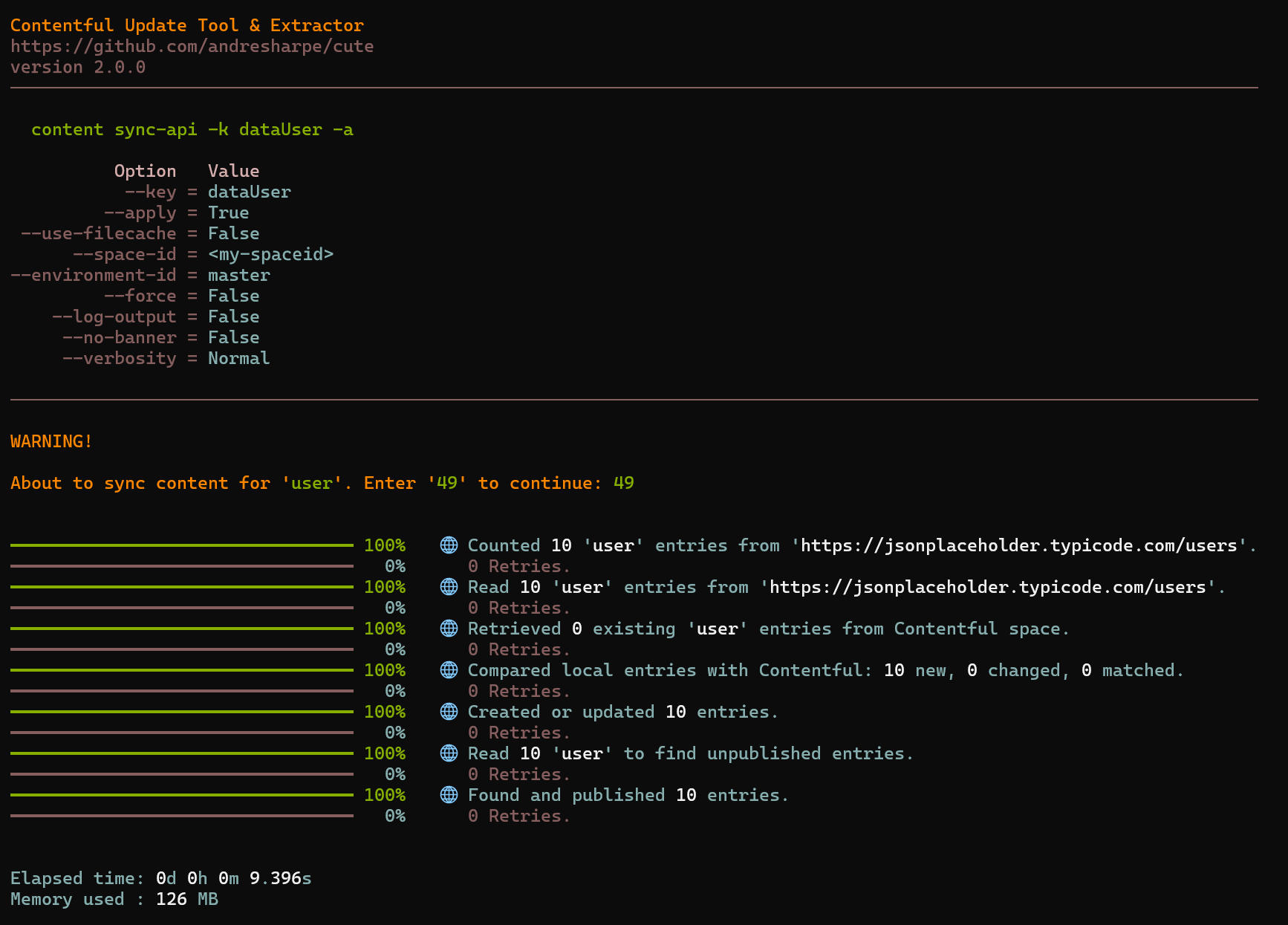
Running the `cute content sync-api -c dataUser.
You can translate your content into languages of your choice using various popular AI translation services including Azure, DeepL, Google Translation and ChatGPT.
Typing cute content translate --help will show the full usage and options.
USAGE:
    cute content translate [OPTIONS]

OPTIONS:
    -h, --help                  Prints help information
    -c, --content-type-id <ID>  The Contentful content type id
    -f, --field                 The field(s) which will be translated. If not specified, all localized fields will be translated
    -l, --locale <CODE>         The locale code (eg. 'en') linked to the relevant language. If unspecified, all localized fields and languages will be translated
    -k, --key                   The key of a single entry to be translated
    -a, --apply                 Apply and publish all the calculated changes. The default behaviour is to only list the detected changes
cute will filter your content entries and process all entries where:
cute let's you work with one or several AI translation services, depending on your requirement. You're not limited to a single translation service for all your languages. You can choose the translation service that yields the best result for all or any of the languages you are translating content to.
Within your Contentful model, locate the cuteLanguageTranslation section. Here you add language entries and assign Azure, Google, DeepL or GPT4o to the translationService field.
If no translation service is specified, Azure Translation Service will be used.
I work in the admissions department for a technical college with students from all over the globe. I'd like to translate the opening and closing paragraph of our acceptance letter for French, Russian, Georgian and Spanish.
cute content translate -c dataAcceptanceLetter --field paragraphOpening, paragraphClosing --locale fr,ru,ka,es
This command will get all the dataAcceptanceLetter entries and will translate opening and closing paragraph fields to locales fr (French), ru (Russian), ka (Georgian) and es (Spanish) where applicable.
cute supports structural subtyping through the type scaffold command option. You can export TypeScript (TS) or .NET (CS) interface declarations, or a simple Excel file with individual worksheets detailing your content model. This feature is especially useful to keep your JavaScript or .NET projects in sync with your content types.
USAGE:
    cute type scaffold [OPTIONS]

OPTIONS:
    -h, --help            Prints help information
    -c, --content-type    Specifies the content type to generate types for. Default is all
    -o, --output          The local path to output the generated types to
    -l, --language        The language to generate types for (TypeScript/CSharp)
    -n, --namespace       The optional namespace for the generated type
You can generate content using OpenAI Generative Pre-trained Transformer (GPT) using the bulk operation feature of cute.
OpenAI ChatGPT uses a state-of-the-art Large Language Model (LLM) to generate text that is difficult to distinguish from human-written content.
Prompts and system messages that are generally used to interact with ChatGPT are configured and persisted in your Contentful space. This is especially useful as your AI prompts are persisted and backed up in the cloud right alongside your content.
Prompts can be added and configured in the 🤖 Cute / ContentGenerate section your Contentful space. A typical prompt entry has an id, a system message, a prompt, points to a content type and field. Something like :-
| Title | Note |
|---|---|
| title | A short title by which the prompt entry is referred to. |
| systemMessage | Used to communicate instructions or provide context to the model at the beginning of a conversation. |
| prompt | A question or instruction that you issue to ChatGPT. This prompt is used to generate an appropriate response. |
| deploymentModel | Select which Large Language Model (LLM) is used for your interaction. |
| maxTokenLimit | The maximum tokens to be used for the interaction |
| temperature | Controls the randomness of the generated response. A higher temperature value increases randomness, making the responses more diverse and creative, while a lower value makes them more focused and deterministic. |
| topP | Controls the diversity of the generated output by truncating the probability distribution of words. It functions as a filter to determine the number of words or phrases the language model examines while predicting the next word. For instance, when the Top P value is set at 0.4, the model only considers 40% of the most probable words or phrases. A higher Top P value results in more diverse creative responses. A lower value will result in more focused and coherent responses. |
| frequencyPenalty | Controls the repetitiveness of words in generated responses. Increasing this value is like telling ChatGPT not to use the same words too often. |
| presencePenalty | Manages the appearance of words in generated text based on their position, rather than frequency. This parameter encourages ChatGPT to employ a more diverse vocabulary |
| cuteDataQueryEntry | A link to the associated data query in 🤖 Cute / DataQuery |
| promptOutputContentField | The target field of the content entry where the generated response is stored. |
DESCRIPTION:
Generate content using a Large Language Model (LLM).

USAGE:
    cute content generate [OPTIONS]

OPTIONS:
    -h, --help          Prints help information
    -k, --key           The key of the 'cuteContentGenerate' entry
    -a, --apply         Apply and publish all the required edits
    -o, --operation     Specify the generation operation to perform. (GenerateSingle, GenerateParallel,
                                      GenerateBatch or ListBatches)
The full command structure for the usage of version 2 of cute can be found in this document.
We welcome community pull requests for bug fixes, enhancements, and documentation. See How to contribute for more information.
