pkg
Behnam/PersianDateTimeWPFToolsv1.3.0
.NET FW4.6.1.NET 6.0-windows7.0.NET 7.0-windows7.0.NET 8.0-windows7.0
Persian calendar WPF calendar with support for Gregorian and solar calendars
Get Started
$ dotnet add package PersianDateTimeWPFToolsReadme
Persian calendar
WPF calendar with support for Gregorian and solar calendars
- A free Persian calendar with the ability to support the Gregorian calendar that can be used in WPF
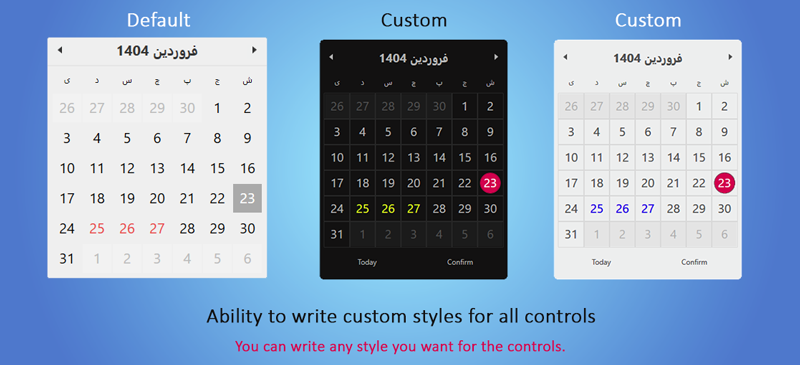
- You can write any style you like for the controls.
- Language change support and other resources
Please see the test project for further guidance.
Controls
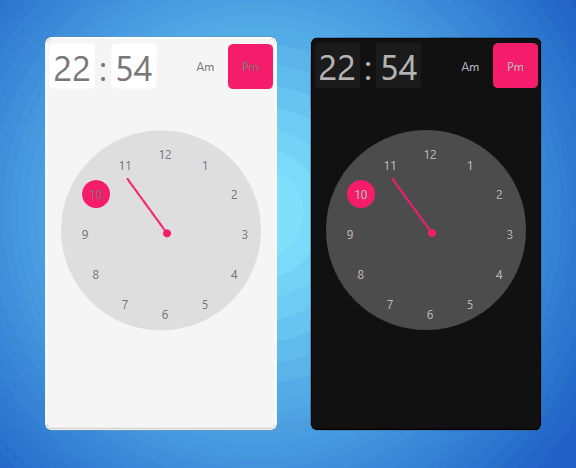
- Clock
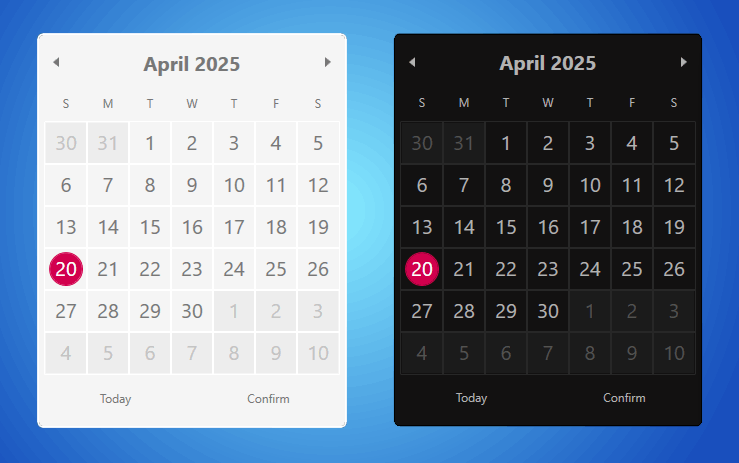
- PersianCalendar
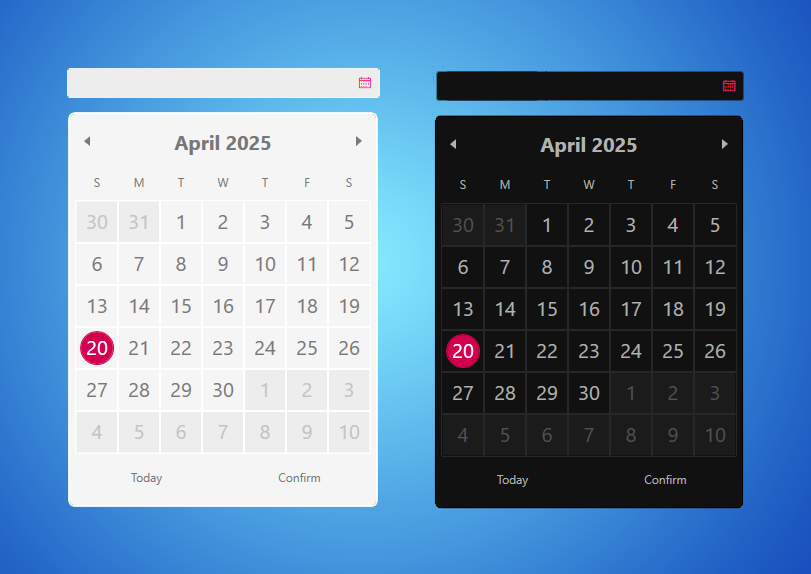
- PersianDatePicker
- PersianDateTimePicker
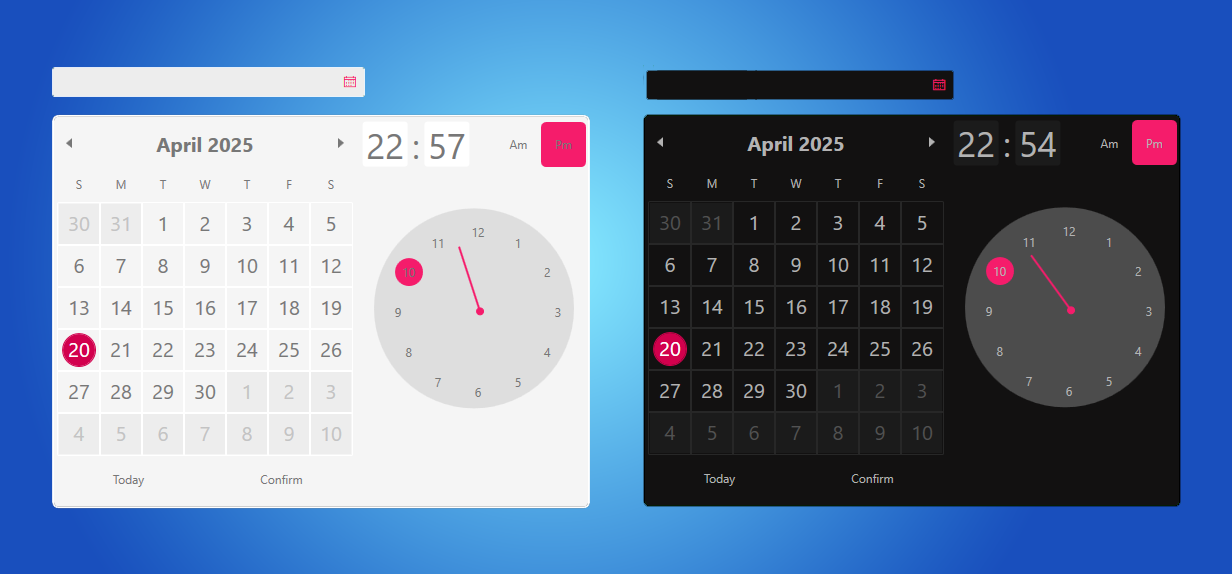
- PersianCalendarWithClock
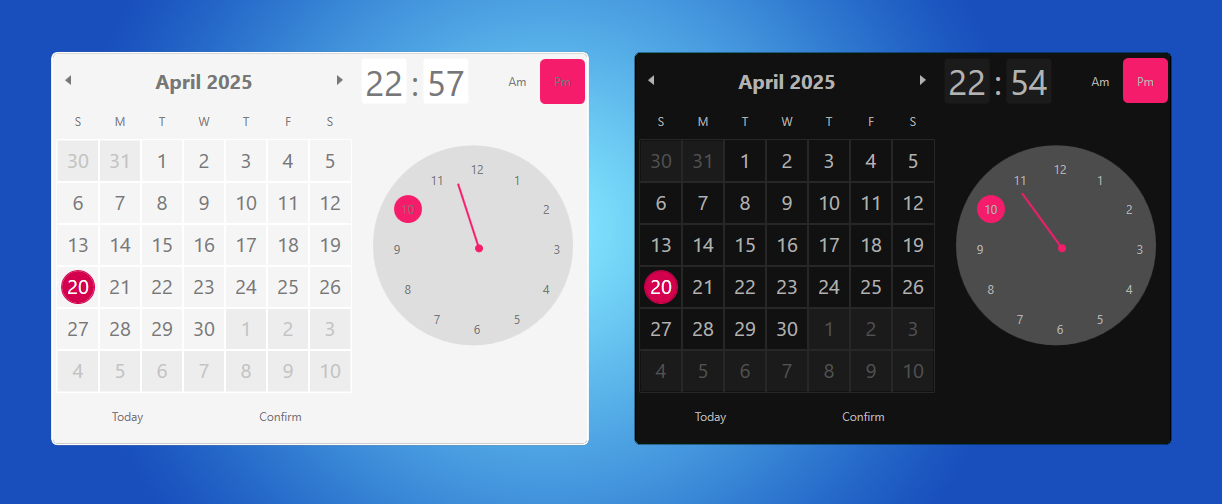
You can manually change the Culture of the control using the following code in XAML or C#.
XAML
CustomCultureName="fa-IR"
C#
pcwc1.CustomCulture = CultureInfo.CreateSpecificCulture("en-US");
If you do not select Culture, it will be automatically selected based on the software's Culture.
⚙️How to use?
Step 1: Add the following resources in the App.xaml file
<Application
             xmlns="http://schemas.microsoft.com/winfx/2006/xaml/presentation"
             xmlns:x="http://schemas.microsoft.com/winfx/2006/xaml"
             xmlns:pdtt="https://github.com/Behnam2064/PersianDateTimeWPFTools"
             >
    <Application.Resources>
        <ResourceDictionary>
            <ResourceDictionary.MergedDictionaries>
                <pdtt:InitResources />
            </ResourceDictionary.MergedDictionaries>
        </ResourceDictionary>
    </Application.Resources>
</Application>
Step 2: Use in XAML (WPF) files You can use below namespace in xaml (wpf)
xmlns:pdtt="https://github.com/Behnam2064/PersianDateTimeWPFTools"
Sample:
<Window
    xmlns:pdtt="https://github.com/Behnam2064/PersianDateTimeWPFTools">
    <Grid>
        <pdtt:PersianCalendar />
    </Grid>
</Window>
Ability to write custom styles for all controls
Dependency Properties
New Dependency Properties
| Name | Description | Default |
|---|---|---|
| CustomCulture | Selecting a different culture than the current software culture | Based on the current software culture |
| CustomCultureName | Choosing a culture name that is different from the current software culture (such as fa-IR or en-US) | Based on the current software culture |
| AllowSelectBlackedOutDay | Selectable holidays | False |
| ShowTodayButton | Show a button to move to the current day | False |
| ShowConfirmButton | Show a button to display confirm button | False |
| DisplayDate | Displays the current date | ? |
| DisplayDateStart | Start displaying the date | ? |
| DisplayDateEnd | End of displaying date | ? |
| DisplayMode | Date display type (like Month,Year,Decade) | Month |
| FirstDayOfWeek | First day of the week | Sunday |
| SelectionMode | Type of selection | SingleDate |
| IsTodayHighlighted | Show current day as highlights | True |
| ✨ DayMetadata | Introduce DayMetadata API for unified per-day customization such as Tooltip, DayIndicators, DayIndicatorStyle, etc. | |
| ✨ DayToolTips | Show Tooltip for calendar days | |
| ✨ DayToolTipTemplate | A template for a tooltip | |
| ✨ DayIndicators | Display Indicator for calendar days | |
| ✨ DayIndicatorStyle | A style for the Indicator |
❔ What is DayMetadata?
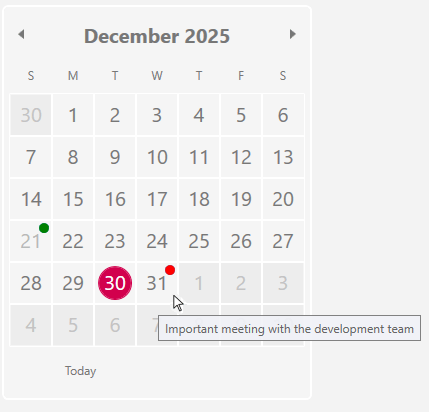
introduce DayMetadata API for unified per-day customization
- Added CalendarDayInfo model to describe per-day metadata
- Introduced DayMetadata dictionary to centralize day configuration
- Unified tooltip, indicator, and disabled-day logic under a single API
- Ensured backward compatibility with existing DayToolTips and DayIndicators
- Enabled tooltips to be shown on disabled days for better UX
- Implemented virtualization-safe updates across month navigation
📝 A note about the DayMetadata execution priority
DayMetadata
↓
DayToolTips / DayIndicators
↓
Default behavior
⚙️How to use DayMetadata?
First you need to familiarize yourself with the properties of the CalendarDayInfo class.
| Name | Description | Default |
|---|---|---|
| ToolTip | Show Tooltip for calendar days | |
| ToolTipTemplate | A template for a tooltip. | |
| HasIndicator | Display Indicator for calendar days | False |
| IndicatorStyle | A style for the Indicator (You can create a unique style for each day.) | |
| IsDisabled | Disable specific day | False |
| ShowToolTipWhenDisabled | Show Tooltip for disabled days | True |
C#
persianCalendar.DayMetadata = new Dictionary<DateTime, CalendarDayInfo>
{
    [new DateTime(2025, 12, 29)] = new CalendarDayInfo
    {
        ToolTip = "Meeting with the marketing team",
    },
    [new DateTime(2025, 12, 31)] = new CalendarDayInfo
    {
        ToolTip = "Important meeting with the development team",
        HasIndicator = true,
        IndicatorStyle = Resources["DayIndicatorRedStyle"] as Style,
    },
    [new DateTime(2025, 12, 21)] = new CalendarDayInfo
    {
        ToolTip = "My love's birthday",
        HasIndicator = true,
        IsDisabled = true,
        ShowToolTipWhenDisabled = true,
        IndicatorStyle = this.Resources["DayIndicatorGreenStyle"] as Style,
        ToolTipTemplate = Resources["FancyDayToolTipTemplate"] as DataTemplate,
    }
};
✨Tip 1
The DateTime object should only contain dates.
✨Tip 2
If you want to update DayMetadata you need to do something like the following
var preDayMetadata = persianCalendar.DayMetadata;

preDayMetadata.Add(DateTime.Today.AddDays(2), new CalendarDayInfo() { ToolTip = "Don't forget about renting a house.", HasIndicator = true });

persianCalendar.DayMetadata = preDayMetadata;
💫Creating a Style for the Day Indicator
<Style
    x:Key="DayIndicatorRedStyle"
    TargetType="Ellipse">
    <Setter
        Property="Width"
        Value="10" />
    <Setter
        Property="Height"
        Value="10" />
    <Setter
        Property="Fill"
        Value="Red" />
    <Setter
        Property="VerticalAlignment"
        Value="Top" />
    <Setter
        Property="HorizontalAlignment"
        Value="Right" />
    <Setter
        Property="Margin"
        Value="2,2,2,4" />
</Style>
⚙️How to use Day ToolTips?
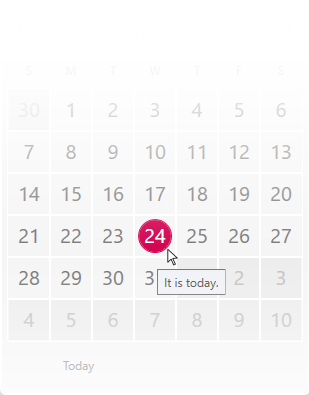
C#
persianCalendar.DayToolTips = new Dictionary<DateTime, object>
{
            { DateTime.Today,"It is today."},
            { DateTime.Today.AddDays(1),"It is tomorrow."},
};
✨Tip 1
The DateTime object should only contain dates.
✨Tip 2
If you want to update Day ToolTips you need to do something like the following
var preTooltips = persianCalendar.DayToolTips;
preTooltips.Add(DateTime.Today.AddDays(2), "Important business meeting");
persianCalendar.DayToolTips = preTooltips;
You can also create a Template for Day Tooltip.
XAML
<DataTemplate
    x:Key="FancyDayToolTipTemplate">
    <Border
        Background="#222"
        Padding="8"
        CornerRadius="6">
        <StackPanel>
            <TextBlock
                Text="{Binding}"
                Foreground="White"
                FontWeight="Bold" />
            <TextBlock
                Text="More..."
                Foreground="LightGray"
                FontSize="11" />
        </StackPanel>
    </Border>
</DataTemplate>
And in your control
DayToolTipTemplate="{StaticResource FancyDayToolTipTemplate}"
⚙️How to use Day Indicators?
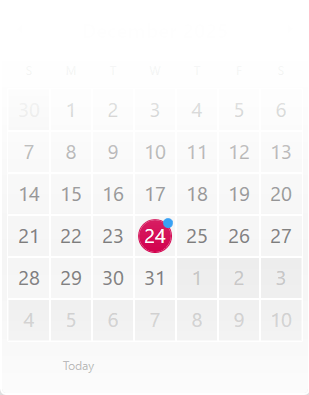
C#
persianCalendar.DayIndicators = new Dictionary<DateTime, bool>
{
            [new DateTime(2025, 12, 23)] = true,
            [new DateTime(2025, 12, 25)] = true
};
✨Tip 1
The DateTime object should only contain dates.
✨Tip 2
If you want to update Day Indicators you need to do something like the following
var preDayIndicators = persianCalendar.DayIndicators;
preDayIndicators.Add(DateTime.Today.AddDays(2), true);
persianCalendar.DayIndicators = preDayIndicators;
You can also create a Style for Day Indicators.
<Style
    x:Key="RedDotIndicatorStyle"
    TargetType="Ellipse">
    <Setter
        Property="HorizontalAlignment"
        Value="Right" />
    <Setter
        Property="VerticalAlignment"
        Value="Top" />
    <Setter
        Property="Width"
        Value="10" />
    <Setter
        Property="Height"
        Value="10" />
    <Setter
        Property="Fill"
        Value="Red" />
</Style>
And in your control
DayIndicatorStyle="{StaticResource RedDotIndicatorStyle}"
⚙️How to change the theme
In the App.xaml file, you can select one of the following themes by selecting the SelectedTheme property in the InitResources class.
- Default
- DarkModern1
- LightModern1
<Application
             xmlns="http://schemas.microsoft.com/winfx/2006/xaml/presentation"
             xmlns:x="http://schemas.microsoft.com/winfx/2006/xaml"
             xmlns:pdtt="https://github.com/Behnam2064/PersianDateTimeWPFTools"
             >
    <Application.Resources>
        <ResourceDictionary>
            <ResourceDictionary.MergedDictionaries>
                <pdtt:InitResources
                    SelectedTheme="LightModern1"
                />
            </ResourceDictionary.MergedDictionaries>
        </ResourceDictionary>
    </Application.Resources>
</Application>
⚙️How to change theme in C#
You can do the following in the constructor of the App.xaml.cs class:
public partial class App : Application
    {
        public App()
        {
            var init = new InitResources();
            init.SelectedTheme = PersianDateTimeWPFTools.Themes.BaseThemeName.DarkModern1;
        }
    }
or
public partial class App : Application
    {
        public App()
        {
            InitResources.SetTheme(new ThemeDarkModern1());
        }
    }
⚙️How to change the control language?
public partial class App : Application
    {
        public App()
        {
            new InitResources()
            .ChangeLanguage("fa"); // en
        }
    }
⚙️How to change the language of controls with our own resources
To read the language resources, please visit the link below. Github Link
public partial class App : Application
    {
        public App()
        {
            new InitResources()
            .ChangeLanguage(null, "pack://application:,,,/TestPersianCalendar;component/Lang.es.xaml"); // Your resource address
        }
    }
The next feature could be new themes 💫