A C# source generator for Blazor that converts Markdown files (.md) into Razor components.
Get Started
$ dotnet add package MD2RazorGeneratorReadme
"MD2RazorGenerator" - Markdown to Razor Component Generator for Blazor



Summary
MD2RazorGenerator is a C# source generator NuGet package for Blazor that converts Markdown files (.md) into Razor components. Once you install this NuGet package, any Markdown files (.md) in your Blazor project will automatically be compiled into Razor components.
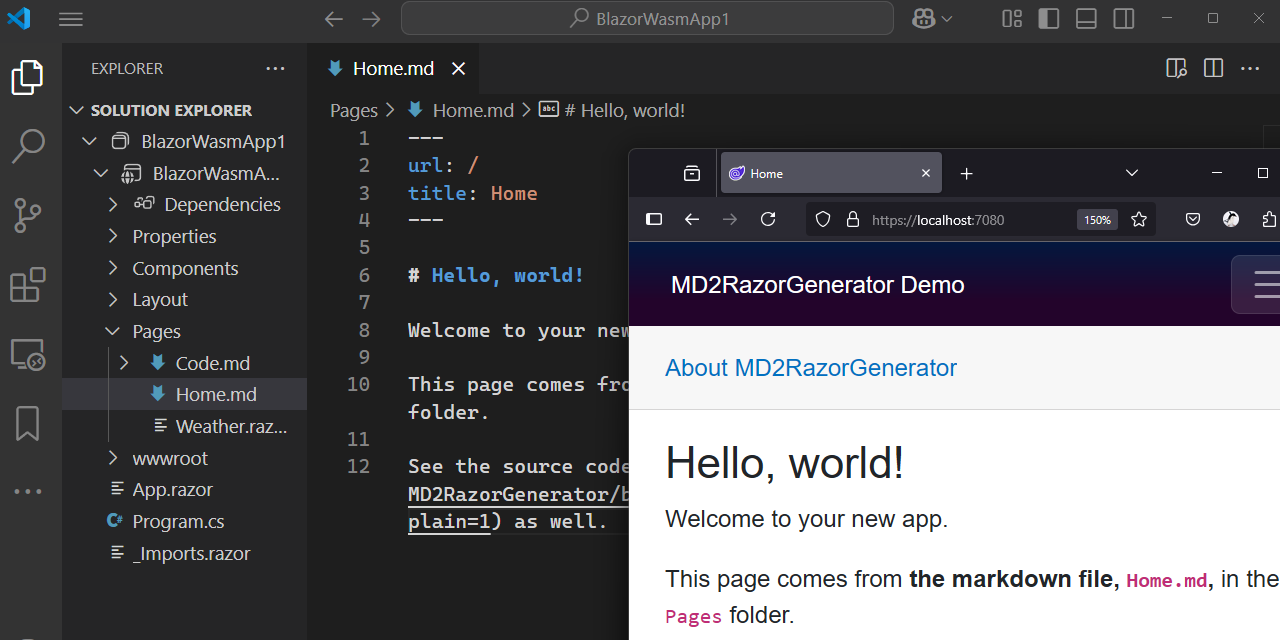
Live Demo Site: https://jsakamoto.github.io/MD2RazorGenerator/
Generated components work seamlessly with all Blazor rendering modes, including Server, WebAssembly, and Server-Side Rendering (SSR). It also fully supports hot reload, ensuring a smooth and productive development experience regardless of your chosen hosting model.
For a quick visual overview, watch Jimmy Engström’s introduction video:

Quick Start
1. Install the NuGet package via the .NET CLI:
dotnet add package MD2RazorGenerator
Or use the NuGet Package Manager in Visual Studio.
2. Add a Markdown file to your project. For example, create a file named Greeting.md in the Pages folder:
# Hello, World!
3. The Greeting Razor component will be generated automatically. You can use it anywhere in your Blazor application:
<!-- Pages/Index.razor -->
@page "/"

<Greeting />
Creating Routable Page Components
To make a generated component routable, specify a url in the YAML front matter at the top of your Markdown file. This works the same as the @page directive in .razor files. For example, the following in Home.md:
---
url: /home
---
# Hello, World!
This will generate a Home Razor component, allowing you to navigate to /home in your Blazor application. You can also specify multiple URLs using YAML sequence syntax:
---
url: [/, /home]
---
Available YAML Front Matter Keys
The following keys are available in the YAML front matter of Markdown files:
| Key | Description | Sequence Supported |
|---|---|---|
| url | The URL(s) for the component. Functions like the @page directive. | Yes |
| title | The page title. If specified, a <PageTitle> component will be included in the generated Razor component. | No |
| $using | Using directives for the generated Razor component. Functions like the @using directive. | Yes |
| $namespace | The namespace for the generated Razor component. | No |
| $attribute | Attributes for the generated Razor component. Functions like the @attribute directive. | Yes |
| $layout | The layout class for the generated Razor component. Functions like the @layout directive. | No |
| $inherit | The base class for the generated Razor component. Functions like the @inherits directive. | No |
MSBuild Properties
You can control the behavior of MD2RazorGenerator with the following MSBuild property:
| Property | Description | Default Value |
|---|---|---|
| MD2RazorDefaultBaseClass | The default base class for generated Razor components. | Microsoft.AspNetCore.Components.ComponentBase |
Known Limitations
_Imports.razor Parsing
MD2RazorGenerator now supports reading @using directives from _Imports.razor files to apply them to generated components. However, the parser uses a simple regex-based approach that may not correctly handle complex scenarios. In particular:
- Comments within the same line as a
@usingdirective might cause parsing issues - Multi-line directives might not be properly recognized
For best results, keep your @using directives in _Imports.razor files simple and on dedicated lines.
Appendix: Code Syntax Highlighting
This NuGet package does not provide code syntax highlighting itself. To enable code syntax highlighting, you can use Prism.js. Follow these steps:
1. Add the Prism.js CSS and JS files to your project. One of the easiest ways is to use a CDN. Add the following to your fallback page, such as wwwroot/index.html:
<!DOCTYPE html>
<html lang="en">
<head>
    ...

    <!-- Add this line to include Prism.js CSS file. -->
    <link rel="stylesheet" href="https://cdnjs.cloudflare.com/ajax/libs/prism/1.30.0/themes/prism.min.css" integrity="sha512-tN7Ec6zAFaVSG3TpNAKtk4DOHNpSwKHxxrsiw4GHKESGPs5njn/0sMCUMl2svV4wo4BK/rCP7juYz+zx+l6oeQ==" crossorigin="anonymous" referrerpolicy="no-referrer" />

    ...
</head>

<body>

    ...

    <!-- Add these two lines to load Prism.js JavaScript files. -->
    <script src="https://cdnjs.cloudflare.com/ajax/libs/prism/1.30.0/components/prism-core.min.js" integrity="sha512-Uw06iFFf9hwoN77+kPl/1DZL66tKsvZg6EWm7n6QxInyptVuycfrO52hATXDRozk7KWeXnrSueiglILct8IkkA==" crossorigin="anonymous" referrerpolicy="no-referrer"></script>
    <script src="https://cdnjs.cloudflare.com/ajax/libs/prism/1.30.0/plugins/autoloader/prism-autoloader.min.js" integrity="sha512-SkmBfuA2hqjzEVpmnMt/LINrjop3GKWqsuLSSB3e7iBmYK7JuWw4ldmmxwD9mdm2IRTTi0OxSAfEGvgEi0i2Kw==" crossorigin="anonymous" referrerpolicy="no-referrer"></script>

</body>
</html>
2. Add a code-behind file for your Markdown file. For example, create Greeting.md.cs in the same folder as Greeting.md:
using Microsoft.AspNetCore.Components;
using Microsoft.JSInterop;
namespace YourNamespace.Pages;

public partial class Greeting
{
    [Inject]
    private IJSRuntime JsRuntime { get; set; } = default!;

    protected override async Task OnAfterRenderAsync(bool firstRender)
    {
        // Call Prism to highlight code blocks after rendering
        await JsRuntime.InvokeVoidAsync("Prism.highlightAll");
    }
}
Alternatively, you can create a base class that handles code syntax highlighting and specify this base class in your Markdown file using the $inherit key in the YAML front matter. This allows you to centralize the highlighting logic and reuse it across multiple generated components.
Instead of specifying the base class in each Markdown file, you can also set the base class for all Markdown files at once by configuring the MD2RazorDefaultBaseClass MSBuild property. This makes it easy to apply the same base class to every generated component in your project.
Appendix: Comparison with Other Markdown Libraries for Blazor
Several libraries are available for rendering Markdown as HTML in Blazor applications, such as Radzen Blazor Markdown, Blazorise Markdown, and MudBlazor.Markdown. These libraries typically load Markdown text, convert it to HTML, and render it at runtime.
Key advantages of MD2RazorGenerator:
- Native Markdown Editing: Since you work directly with plain Markdown (
.md) files, you can take full advantage of Markdown-compatible editors and their rich ecosystem of Markdown-specific features, such as live preview, syntax highlighting, and linting. - Build-Time Conversion: Unlike runtime libraries, MD2RazorGenerator uses a C# source generator to convert Markdown files into Razor components at build time. No Markdown-to-HTML conversion occurs during application execution.
- No Runtime Overhead: Since conversion happens at build time, there is no additional memory usage or processing cost at runtime for Markdown parsing or rendering. This results in faster page loads and lower memory consumption.
- No Increase in App Size: Runtime Markdown libraries often require bundling additional parsing libraries, which can increase the size of the published Blazor application. MD2RazorGenerator does not add such dependencies, keeping your app lightweight.
- Routable Page Components: Each Markdown file becomes a fully routable Razor component, allowing you to define pages directly from Markdown with simple YAML front matter configuration.
- Seamless Integration: The generated components behave like standard Razor components, making it easy to use them throughout your Blazor application without special wrappers or controls.
In summary, MD2RazorGenerator provides an efficient and seamless way to use Markdown in Blazor, with significant benefits in performance, simplicity, and application size compared to traditional runtime Markdown libraries.
Release Notes
See Release Notes.