ComPDFKit is the SDK and API product which is provided by PDF Technologies, and allows developers or companies to integrate into macOS, Windows, Linux, iOS, Android, and Web platforms. Download and integrate ComPDFKit for .NetFramework to obtain the ability to process PDF files with the following functionalities. Contact us for the license to trial for free: https://www.compdf.com/contact-us Features: - PDF Viewer: Provide multiple display modes and themes. Allow to search and select text, zoom, navigate, and rearrange text. - PDF Annotation: Create, delete, edit, import, export, flatten, set permissions, properties, etc. - PDF Editor: Split, merge, insert, delete, replace, extract images, rotate, exchange, etc. - Edit PDF: PDF text, images. - PDF Conversion: Convert PDF to PDF/A - Forms: Generate, fill, sign, and flatten PDF forms. - Signature - PDF Encryption - PDF Comparison - PDF Redaction - Digital Signature - Measurement Contact: - Trial License: https://www.compdf.com/contact-us - Details of the PDF Functionalities: https://www.compdf.com/pdf-sdk/features-list - Developerment Guides: https://www.compdf.com/guides/windows - SDK for Other Package and Programming Platforms: https://www.compdf.com/contact-us
Get Started
$ dotnet add package ComPDFKit.NetFrameworkReadme
Introduction
ComPDFKit PDF SDK is a robust PDF library, which offers comprehensive functions for quickly viewing, annotating, editing, and signing PDFs. It is feature-rich and battle-tested, making PDF files process and manipulation easier and faster.
ComPDFKit for Windows allows you to quickly add PDF functions to any Windows application, elevating your Window programs to ensure efficient development. It is available at Nuget and github.com.
Related
- ComPDFKit API Library for .Net
- Download ComPDFKit PDF SDK for .NET in Nuget
- How to Build a Windows PDF Viewer or Editor
- Brief Introduction to ComPDFKit for Windows
Get Started
It is easy to embed ComPDFKit PDF SDK in your Windows application with a few lines of C# code. The following sections introduce the requirements, the structure of the installation package, and how to make a Windows PDF Reader in C# with ComPDFKit PDF SDK. Take just a few minutes and get started.
Requirements
| System Requirements | Windows 7, 8, 10, and 11 (32-bit and 64-bit) |
|---|---|
| IDE | Visual Studio 2017 or higher (Make sure the .NET Desktop Development is installed) |
| Framework Requirements | .NET Framework 4.5 or higher |
How to Run a Demo
ComPDFKit PDF SDK for Windows provides multiple demos in C# for developers to learn how to call the SDK on Windows. You can find them in the "Examples" folder.
In this guide, we take "PDFViewer" as an example to show how to run it in Visual Studio 2022.
-
Copy your "license_key_windows.xml" to the "Examples" folder (The file is the license to make your project run).
-
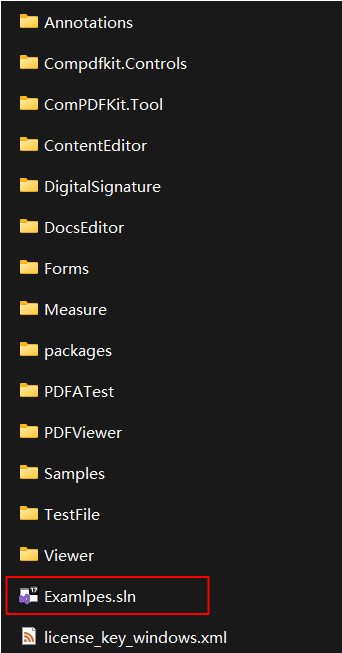
Find "Examples.sln" in the "Examples" folder and open it in Visual Studio 2022.
-
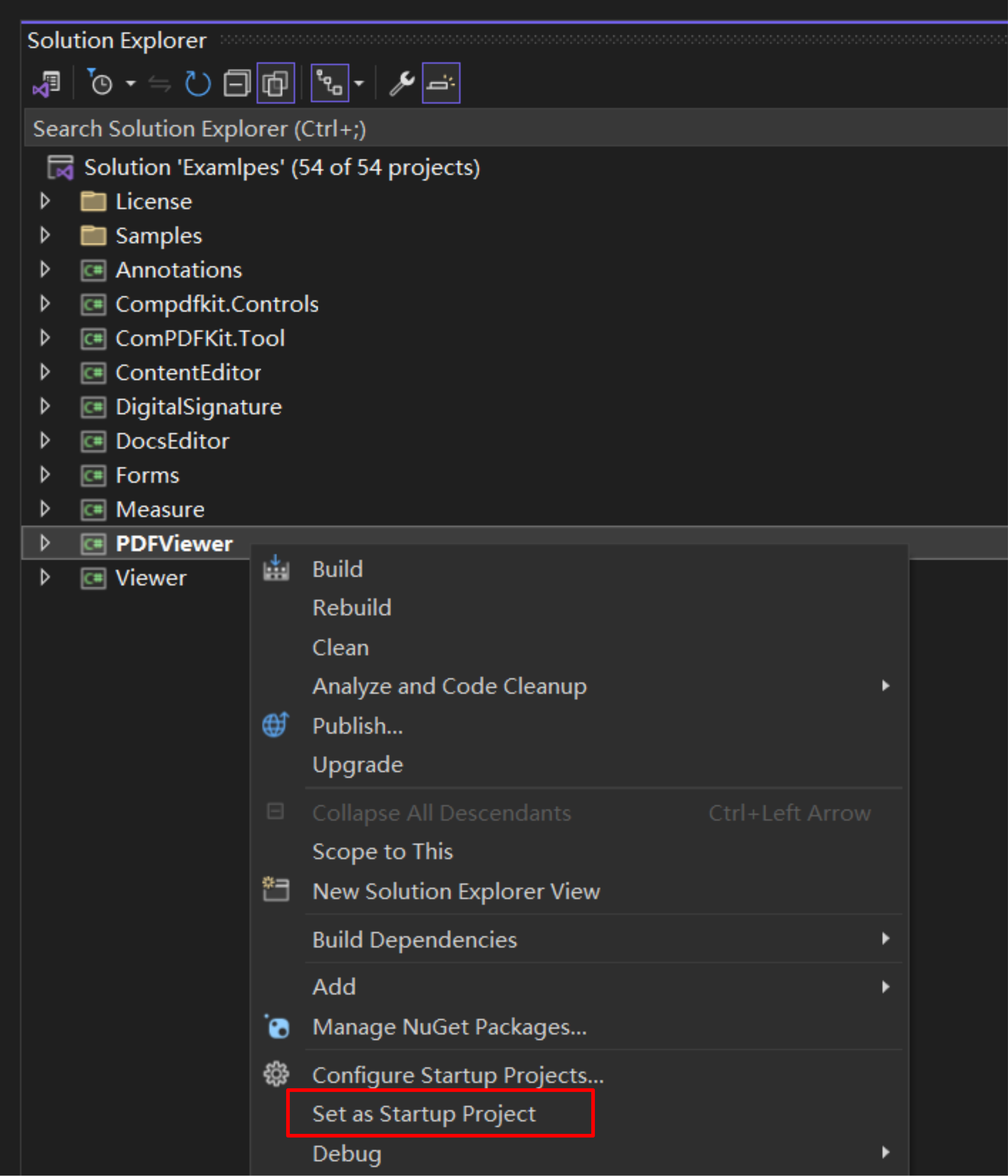
Select "PDFViewer" and right-click to set it as a startup project.
-
Run the project and then you can open the multifunctional "PDFViewer" demo.
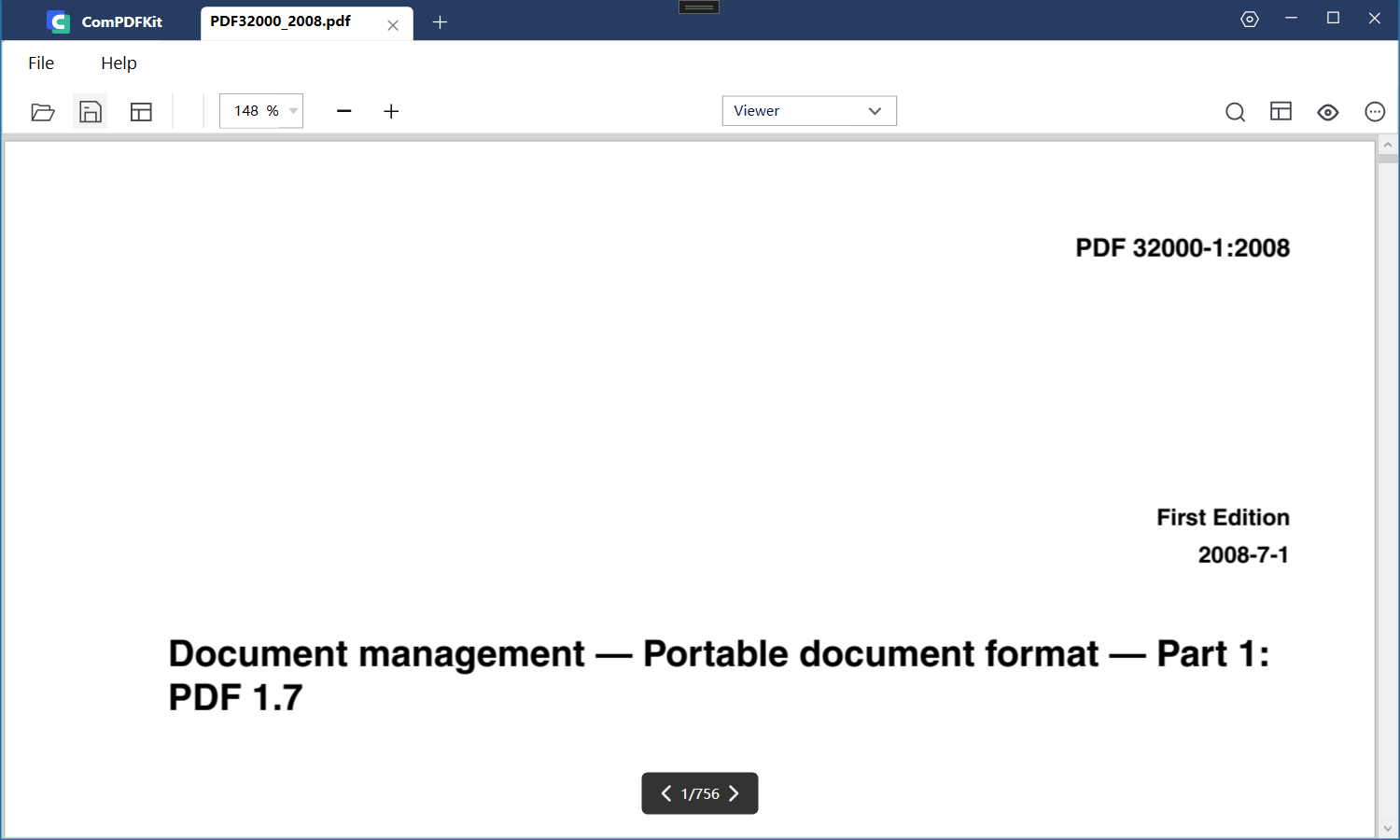
Note: This is a demo project, presenting completed ComPDFKit PDF SDK functions. The functions might be different based on the license you have purchased. Please check that the functions you choose work fine in this demo project.
How to Make a Windows Program in C#
Create a New Project
-
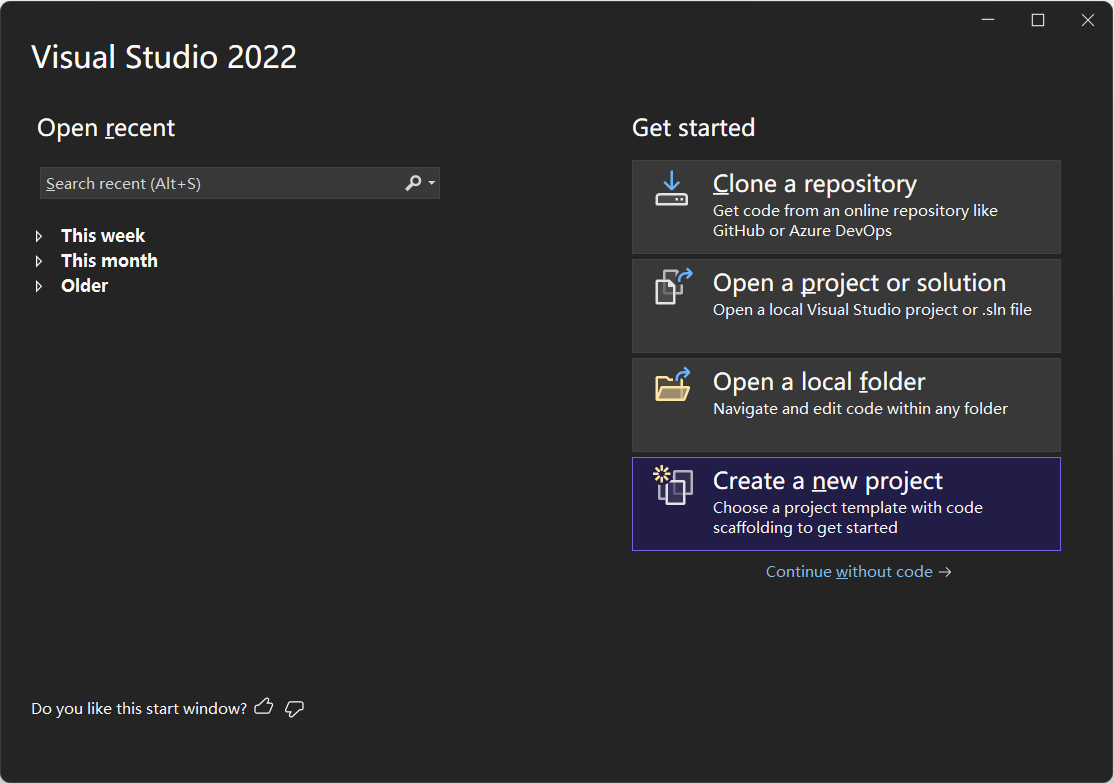
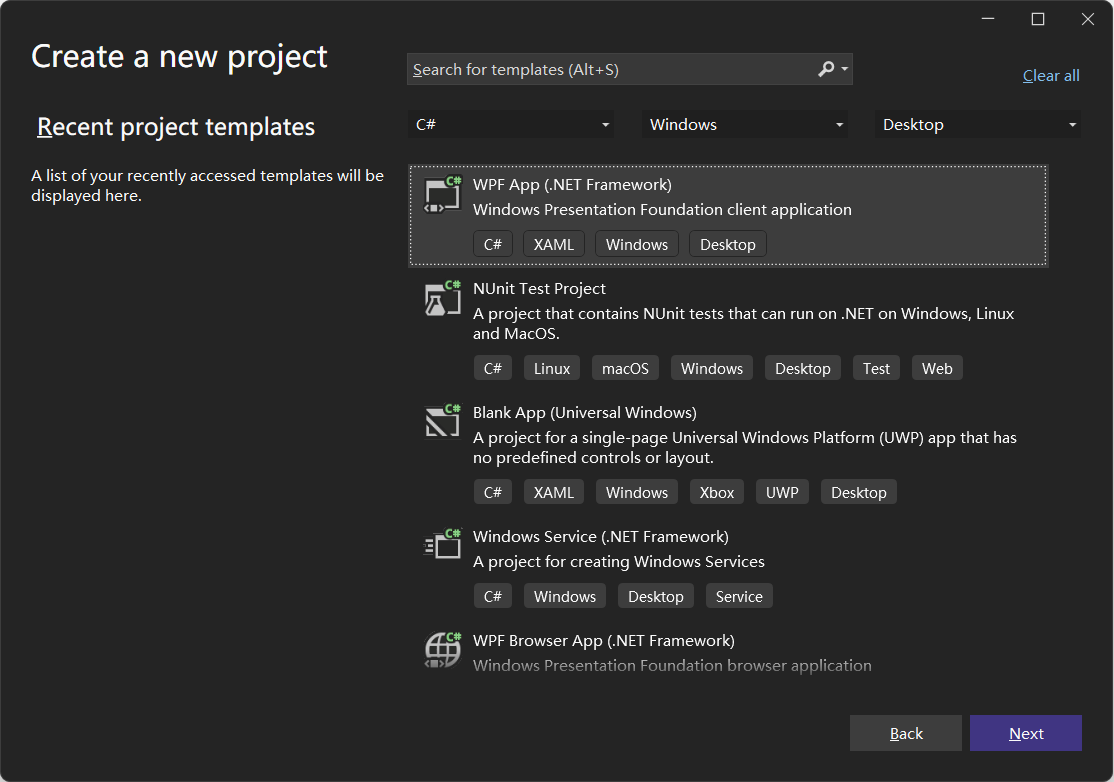
Open Visual Studio 2022, and click Create a new project.
-
Choose WPF App (.NET Framework) and click Next.
-
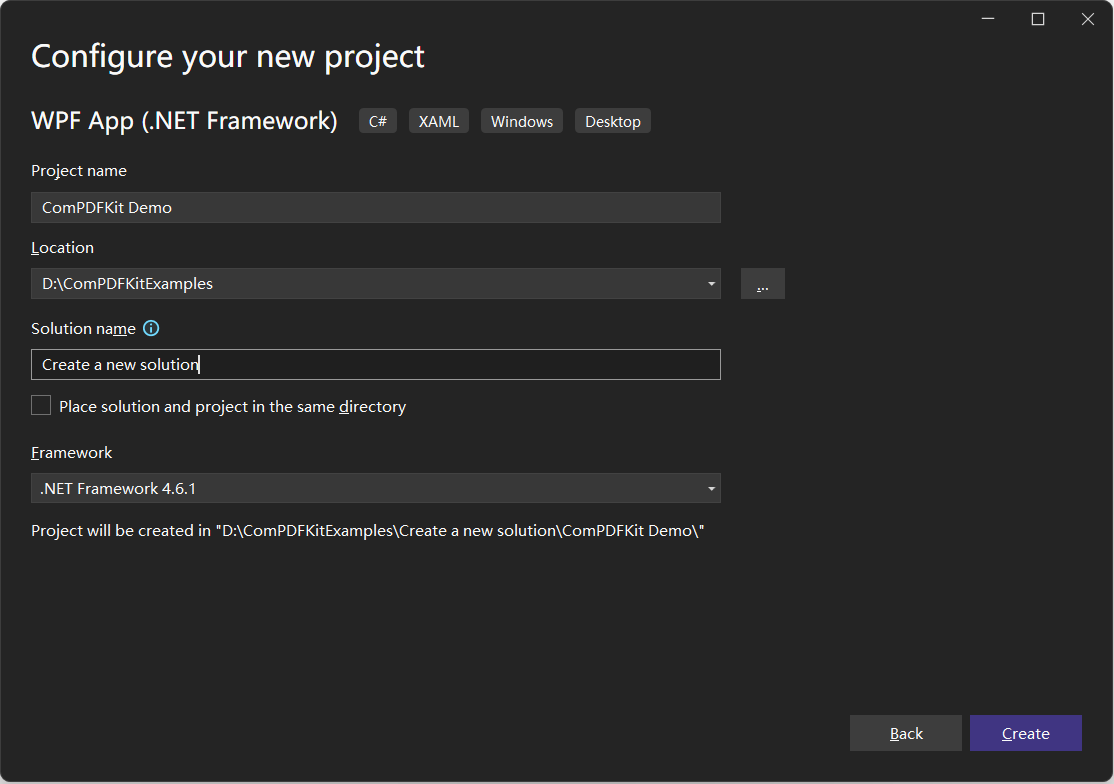
Configure your project: Set your project name and choose the location to store your program. The project name is called "ComPDFKit Demo" in this example. This sample project uses .NET Framework 4.6.1 as the programming framework.
-
Click the Create button. Then, the new project will be created.
Add ComPDFKit to Your Project
There are two ways to add ComPDFKit to your Project: Nuget Repository and Local Package, you can choose one or the other according to your needs.
Nuget Repository
-
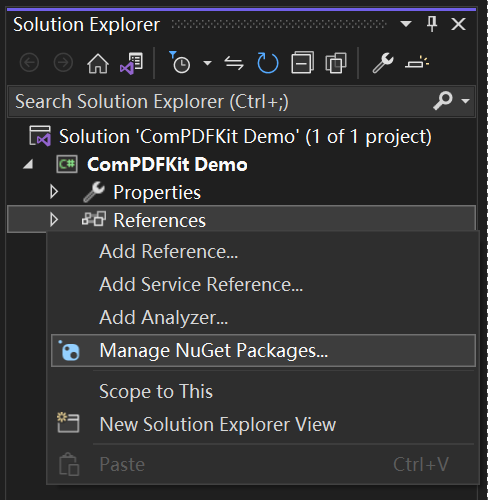
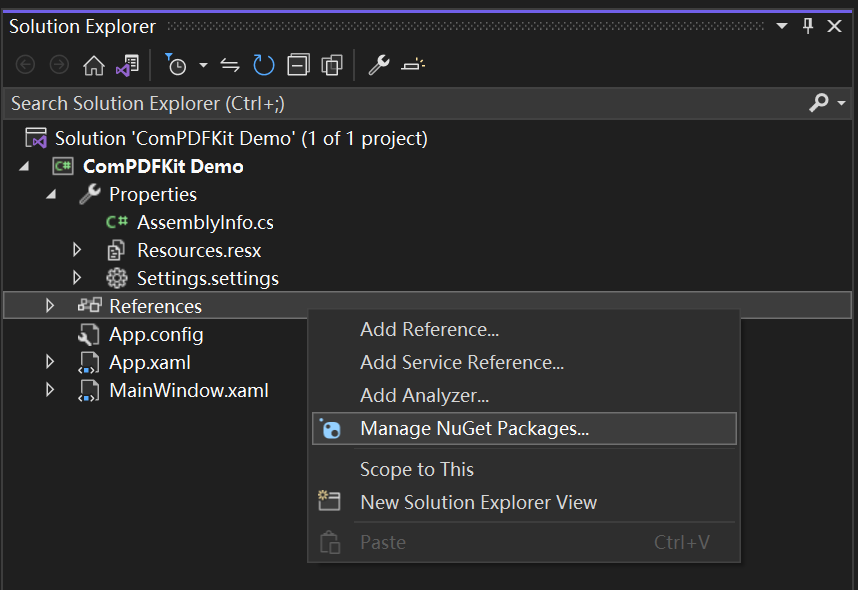
Open your project's solution, and in the Solution Explorer, right-click on References and click on the menu item Manage NuGet Packages. This will open the NuGet Package Manager for your solution.
-
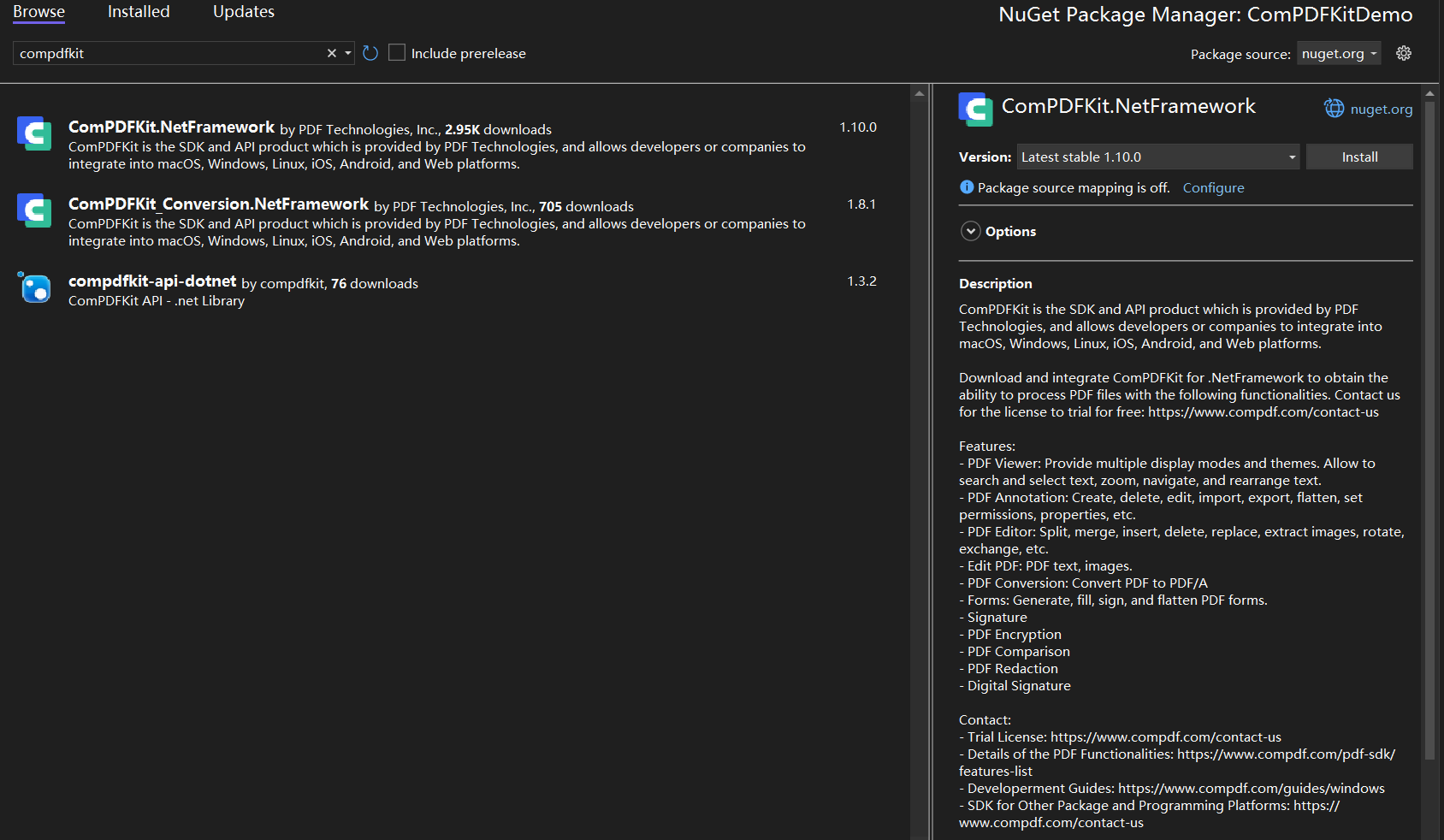
Go to ComPDFKit.NetFramework in Nuget, and click on the Install button to install the package.
-
Once that is complete, you'll see a reference to the package in the Solution Explorer under References.
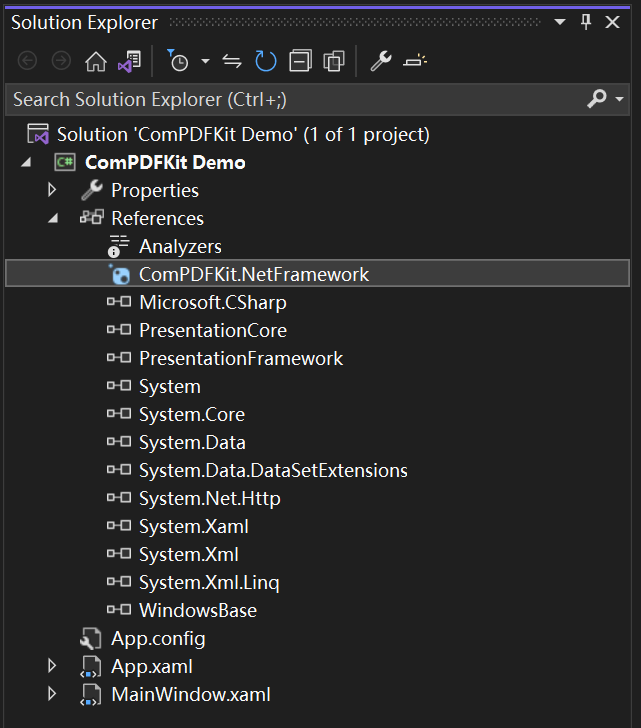
Local Package
Rather than targeting a package held at Nuget, you may set up a configuration to point to a local package. This can be useful for some situations, for example, your build machines don't have access to the internet.
-
You can find "ComPDFKit.NetFramework....nupkg" file in the SDK Package
-
Create or edit a "nuget.config" file in the same directory as your solution file (e.g. "ComPDFKit Demo.sln").
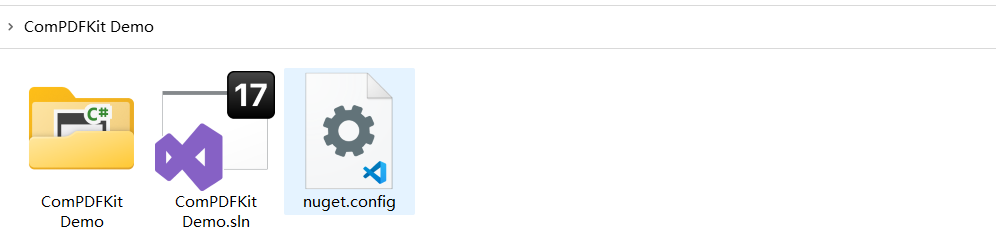
- The contents of the file should contain an XML element, packageSources - which describes where to find NuGet packages - as a child of a root node named configuration. If the file already exists, add the extra packageSources entry shown below. If the file is blank, copy and paste the entirety of the following contents:
<?xml version="1.0" encoding="utf-8"?>
<configuration>
    <packageSources>
        <add key="ComPDFKitSource" value="path\to\directoryContainingNupkg" />
    </packageSources>
</configuration>
- Edit the value of the contents to correctly refer to the location of the directory containing the "ComPDFKit.NetFramework....nupkg" package - for example, C:\Users\me\nugetPackages. Now save the file, and close and reopen your solution for Visual Studio to force a read of the NuGet configuration.
-
Open your project's solution, and in the Solution Explorer, right-click on References and click on the menu item Manage NuGet Packages…. This will open the NuGet Package Manager for your solution.
-
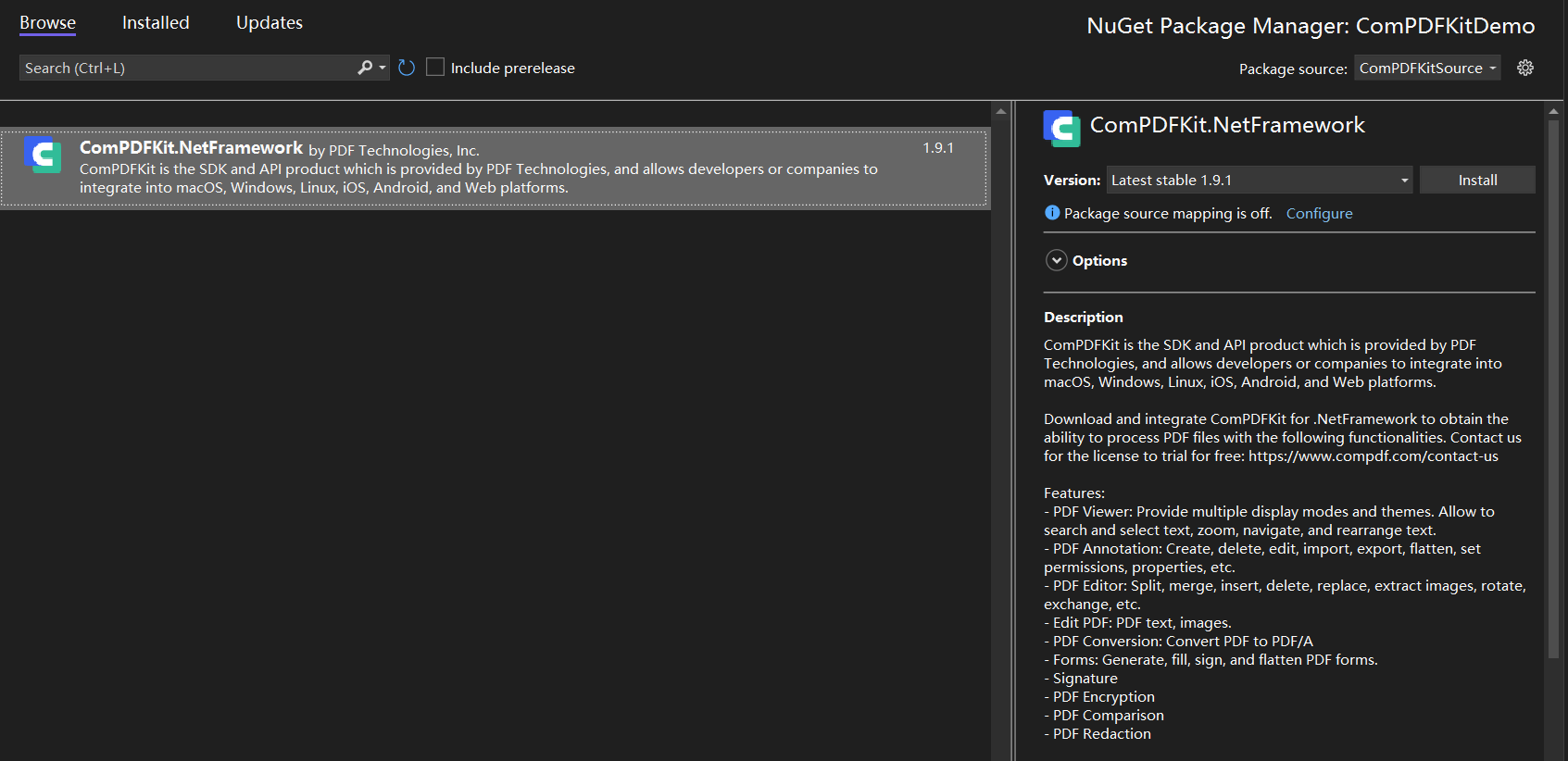
On the right-hand side of the manager in the Package source dropdown window, choose the entry ComPDFKitSource (or whatever you decided to name it). You should then see the entry for "ComPDFKit.NetFramework".
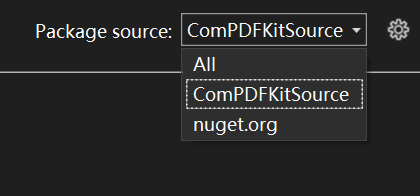
-
On the right side, in the panel describing the package, click on the Install button to install the package.
-
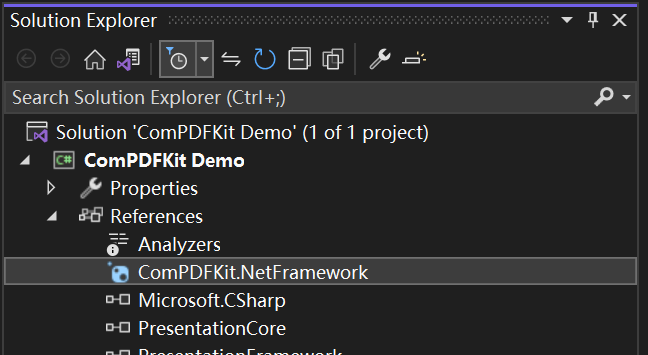
Once that's complete, you'll see a reference to the package in the Solution Explorer under References.
Apply the License Key
You can contact ComPDFKit team to get a trial license. Before using any ComPDFKit PDF SDK classes, a required operation is to set the license key. Add the following method - LicenseVerify() to "MainWindow.xaml.cs".
bool LicenseVerify()
{
    if (!CPDFSDKVerifier.LoadNativeLibrary())
        return false;

    string xmlPath = "The path to your license key XML file";
    LicenseErrorCode verifyResult = CPDFSDKVerifier.LicenseVerify(xmlPath);
    return (verifyResult == LicenseErrorCode.E_LICENSE_SUCCESS);
}
Display a PDF Document
We have finished all prepare steps. Let's display a PDF file.
-
Add the following code to "MainWindow.xaml" and "MainWindow.xaml.cs" to display a PDF document. Please make sure to replace "ComPDFKit_Demo" with the name of your project. Now, all you need to do is to create a
CPDFViewerobject, and then display theCPDFViewerobject in the Grid (component) named "PDFGrid" using theOpenPDF_Clickmethod. -
Now your "MainWindow.xaml" should look like the following code.
<Window x:Class="ComPDFKit_Demo.MainWindow"
        xmlns="http://schemas.microsoft.com/winfx/2006/xaml/presentation"
        xmlns:x="http://schemas.microsoft.com/winfx/2006/xaml"
        xmlns:d="http://schemas.microsoft.com/expression/blend/2008"
        xmlns:mc="http://schemas.openxmlformats.org/markup-compatibility/2006"
        xmlns:local="clr-namespace:ComPDFKit_Demo"
        mc:Ignorable="d"
        Title="MainWindow" Height="450" Width="800" UseLayoutRounding="True">
    <Grid>
        <Grid.RowDefinitions>
            <RowDefinition Height="*"/>
            <RowDefinition Height="52"/>
        </Grid.RowDefinitions>
        <Grid Name="PDFGrid" Grid.Row="0" />
        <Button Content="Open PDF" Grid.Row="1" HorizontalAlignment="Left" Margin="10" Click="OpenPDF_Click"/>
    </Grid>
</Window>
- Now your “MainWindow.xaml.cs” should look like the following code. Please note: You need to enter your license key. All the places that need to be modified in the code have been marked with comments in the code below. You just need to replace the string content below the comments by yourself.
using ComPDFKit.NativeMethod;
using ComPDFKit.PDFDocument;
using ComPDFKitViewer.PdfViewer;
using Microsoft.Win32;
using System.Windows;

namespace ComPDFKit_Demo
{
	public partial class MainWindow : Window
    {
        public MainWindow()
        {
            InitializeComponent();
            LicenseVerify();
        }

        bool LicenseVerify()
        {
            if (!CPDFSDKVerifier.LoadNativeLibrary())
        		return false;

            string xmlPath = "The path to your license key XML file";
    		LicenseErrorCode verifyResult = CPDFSDKVerifier.LicenseVerify(xmlPath);
    		return (verifyResult == LicenseErrorCode.E_LICENSE_SUCCESS);
        }

        private void OpenPDF_Click(object sender, RoutedEventArgs e)
        {
            // Get the path of a PDF file.
            var dlg = new OpenFileDialog();
            dlg.Filter = "PDF Files (*.pdf)|*.pdf";
            if (dlg.ShowDialog() == true)
            {
                // Use the PDF file path to open the document in CPDFViewer.
                CPDFViewer pdfViewer = new CPDFViewer();
                pdfViewer.InitDocument(dlg.FileName);
                if (pdfViewer.Document != null &&
                    pdfViewer.Document.ErrorType == CPDFDocumentError.CPDFDocumentErrorSuccess)
                {
                    pdfViewer.Load();
                    PDFGrid.Children.Add(pdfViewer);
                }
            }
        }
    }
}
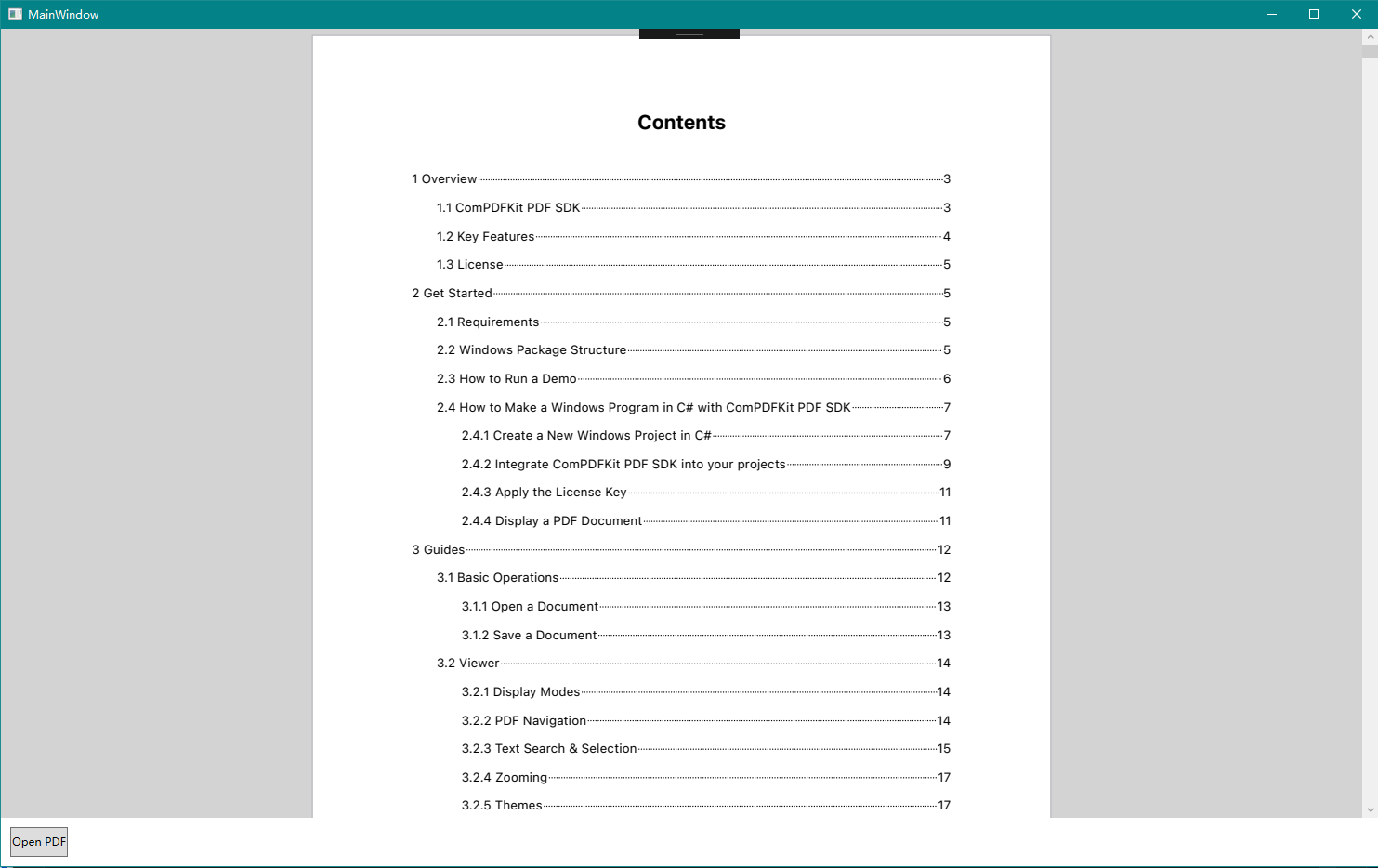
- Now run the project and you will see the PDF file that you want to display. The PDF Viewer has been created successfully.
Troubleshooting
If you meet some other problems when integrating our ComPDFKit PDF SDK for Windows, feel free to contact our support team.
Samples
The Samples use preset parameters and documentation to call the API of ComPDFKit for each function without UI interaction or parameter settings. They not only demonstrate the best practices for each function but also provide detailed introductions. The impact of each function on PDF documents can be observed in the output directory. With the help of the Samples, you can quickly learn how to use the functions you need and apply them to your projects.
You can get our code examples for Windows on our website. To learn more about the ComPDFKit API, please visit our API Reference.
Support
ComPDFKit has a professional R&D team that produces comprehensive technical documentation and guides to help developers. Also, you can get an immediate response when reporting your problems to our support team.
-
For detailed information, please visit our Guides page.
-
Stay updated with the latest improvements through our Changelog.
-
For technical assistance, please reach out to our Technical Support.
-
To get more details and an accurate quote, please contact our Sales Team.
License
ComPDFKit PDF SDK supports flexible licensing options, please contact our sales team to know more. Each license is only valid for one application ID in development mode. However, any documents, sample code, or source code distribution from the released package of ComPDFKit PDF SDK to any third party is prohibited.
Note
We are glad to announce that you can register a ComPDFKit API account for a free trial to process 1000 documents per month for free.